The steps to install SAP Afaria 7 are:
- Download installation package and install license
- SAP Afaria Server
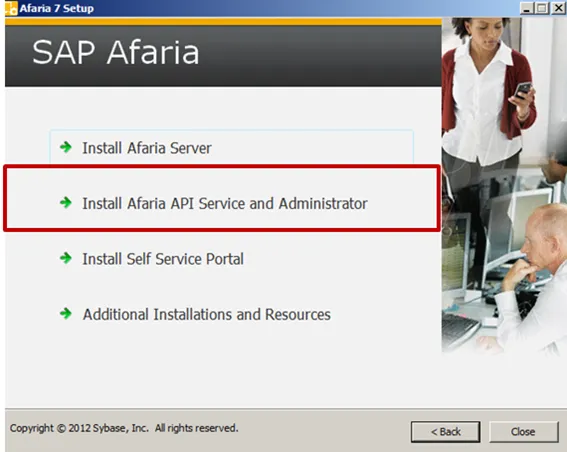
- SAP Afaria API Service and Administrator
- Afaria Admin
- Self Service Portal
- Enrollment Server
- Package Server
- SCEP Plugin-in module
This document is about step 3.
Afaria API Service and Administrator
After SAP Afaria Server is installed, additional components must be installed. All will be installed on the same server, as I am using this as a test environment.
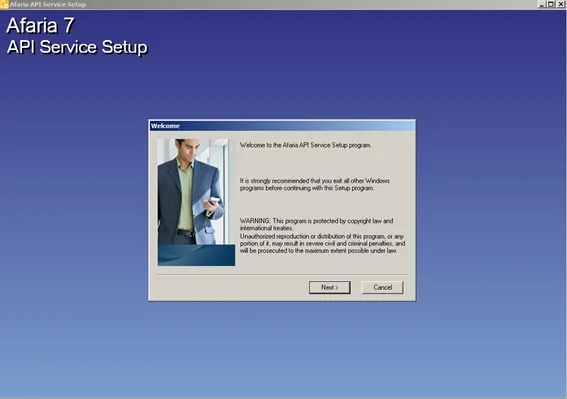
SAP Afaria API Service Setup wizard starts
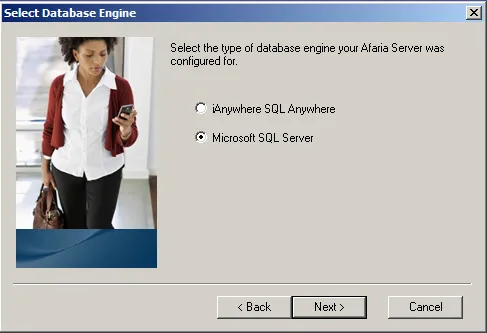
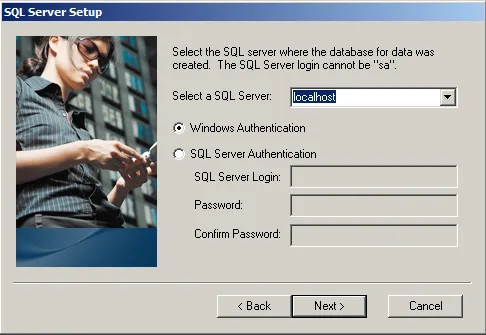
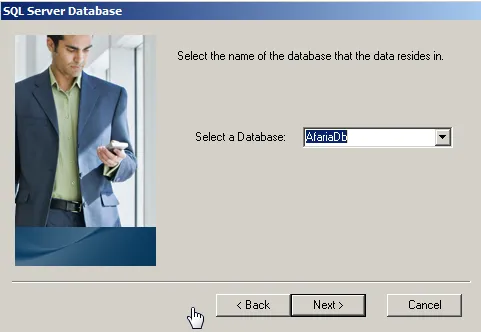
Database
Inform database used by Afaria.
Inform connection data to database
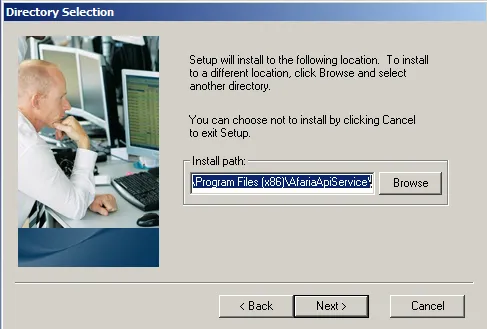
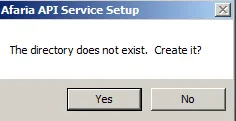
Location
Confirm installation path of API server.
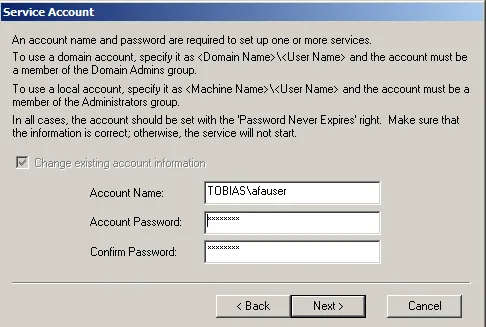
Service Account
Inform service account going to be used by Afaria.
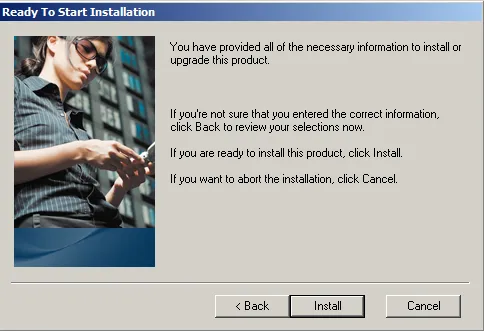
Start installation
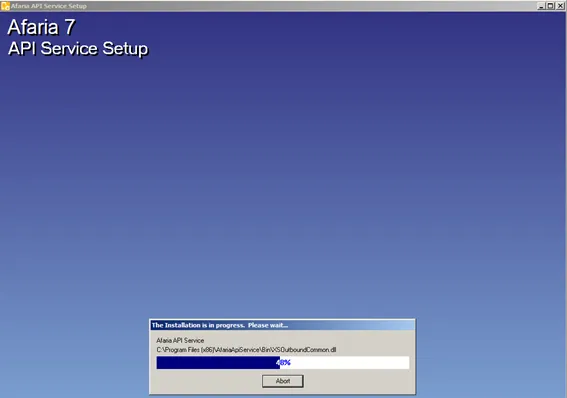
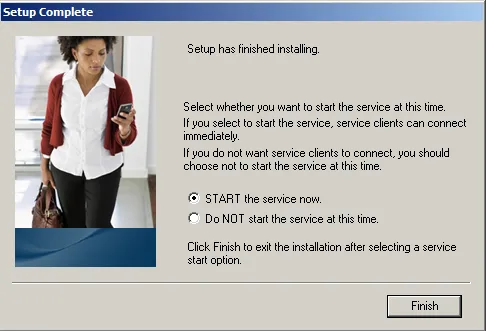

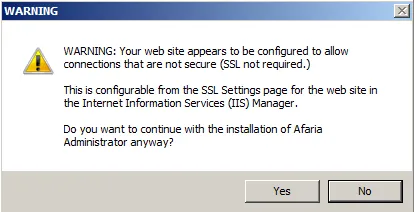
During start of SAP Afaria API service, a warning message may appear, informing you that the API service can be accessed without SSL. This is true as in the IIS SSL configuration step, HTTP access was not forbidden. Again, in a production environment, you’ll have to make sure the API service is accessed in a secure manner.