The steps to install SAP Afaria 7 are:
- Download installation package and install license
- SAP Afaria Server
- SAP Afaria API Service and Administrator
- Afaria Admin
- Self Service Portal
- Enrollment Server
- Package Server
- SCEP Plugin-in module
This document is about step 6.
Additional installations and resources

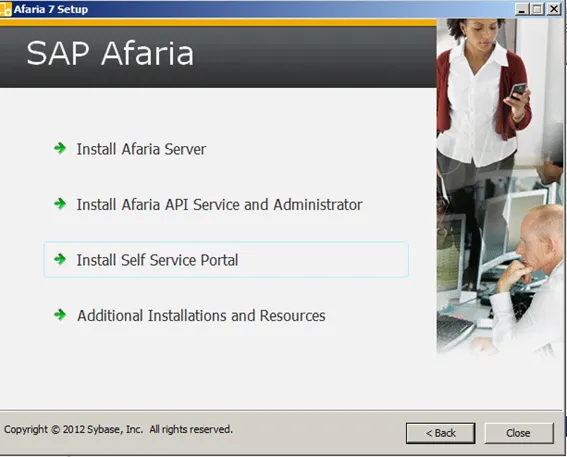
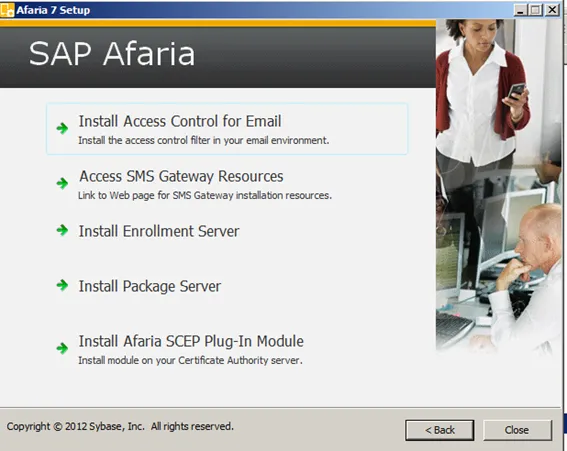
Enrollment Server
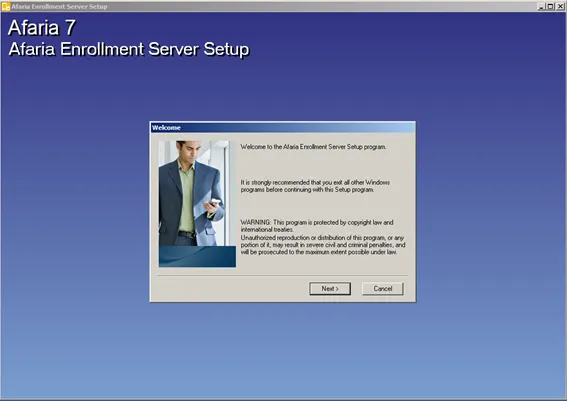
The entrollment server is a IIS web application. To add it, the installer will create a new IIS site.

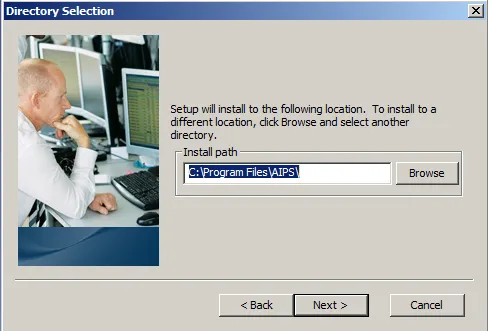
Location
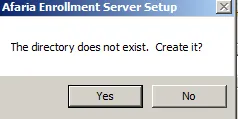
Path to where the enrollment server will be installed. Can be left to default values.
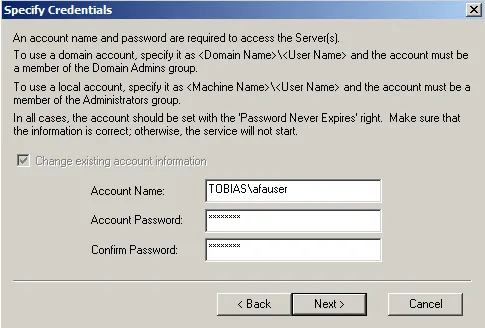
Credentials
Use the SAP Afaria service user.
- Account name: afauser
IIS directory
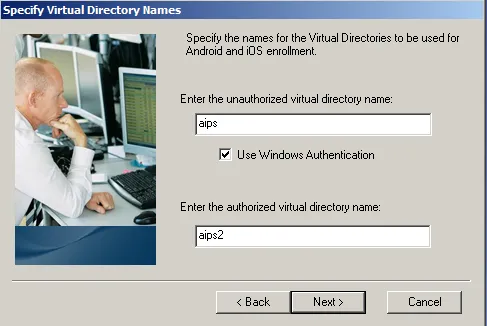
Specify the virtual directory of IIS to where the enrollment server site will be installed to.
- Unauthorized virtual directory name: aips
- Authorized virtual directory name: aips2
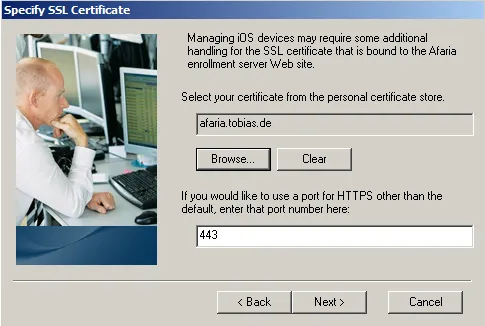
- SSL port: 443
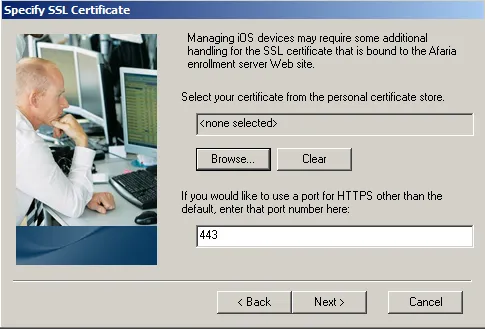
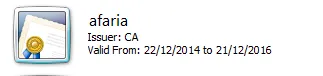
Select the right SSL server certificate.
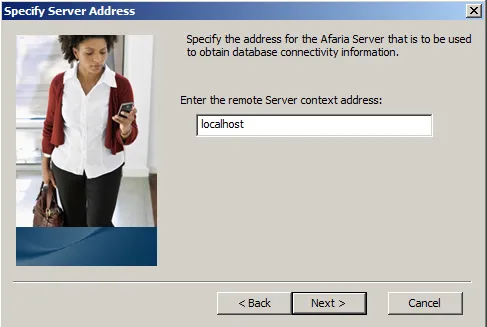
SAP Afaria Server connection
For the enrollment server to work, it must know the address of the SAP Afaria server. In my case both servers are on the same computer, so I can use localhost.
- Remote Server context address: localhost
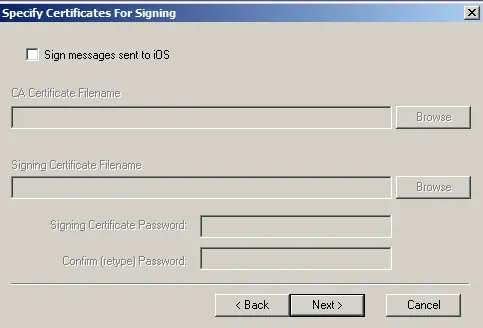
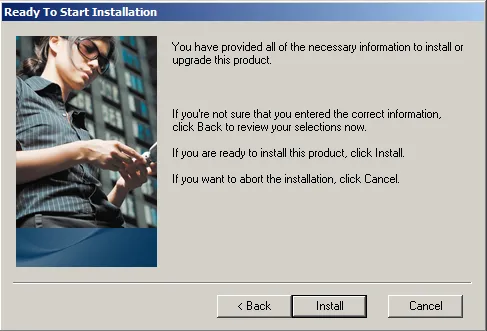
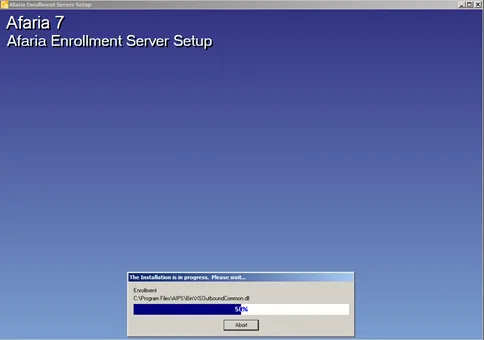
Start installation