

The steps to install SAP Afaria 7 are:
- Download installation package and install license
- SAP Afaria Server
- SAP Afaria API Service and Administrator
- Afaria Admin
- Self Service Portal
- Enrollment Server
- Package Server
- SCEP Plugin-in module
This document is about step 8.
SCEP Plugin-in module
The last component to be installed is the SCEP plug-in. This module is responsible for requesting certificates on behalf of the user. It will make use of the CA and NDE functionality.
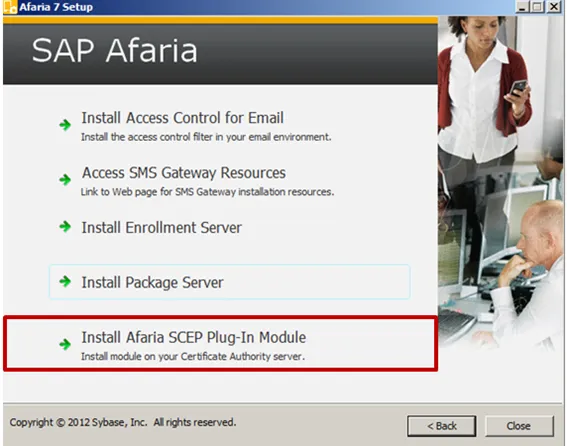
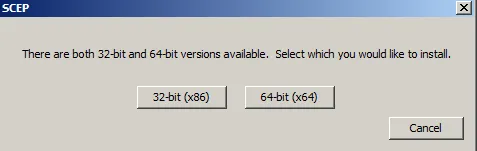
Select the version of the module to be installed. On a x64 architecture, the 64-bit version should be selected.
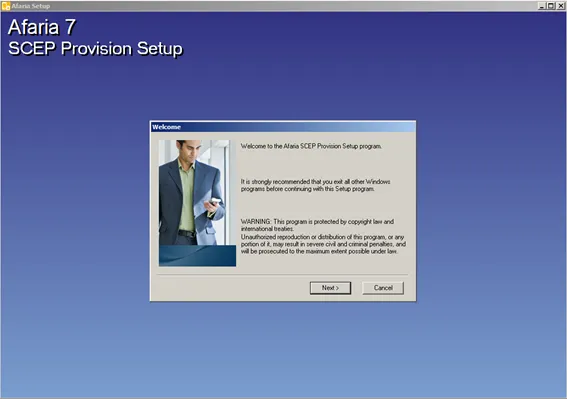
This starts the SCEP installation wizard.
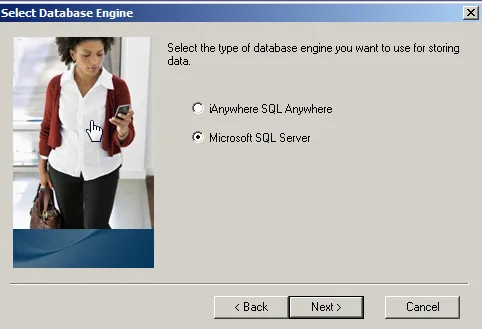
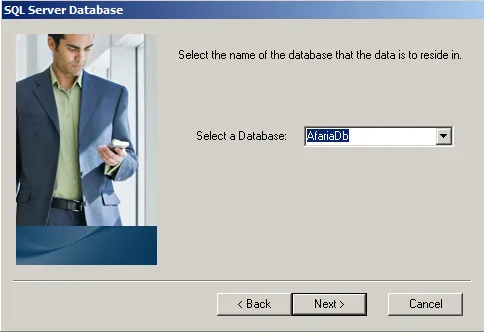
Database
- Type: Microsoft SQL Server
- Server: localhost
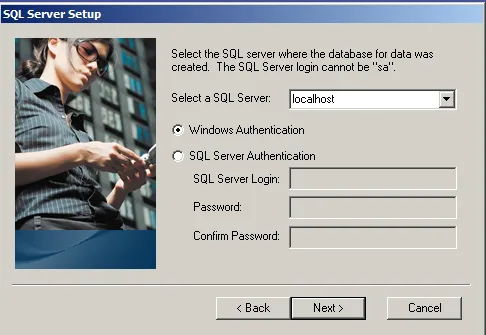
- Database: AfariaDb
Location
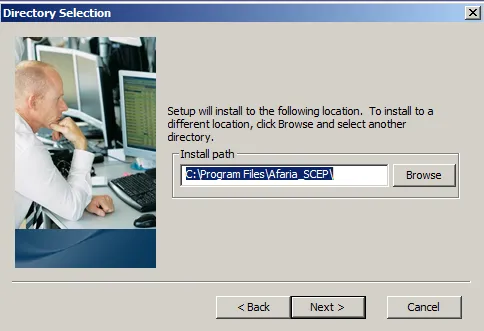
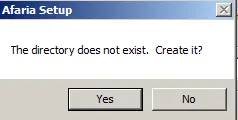
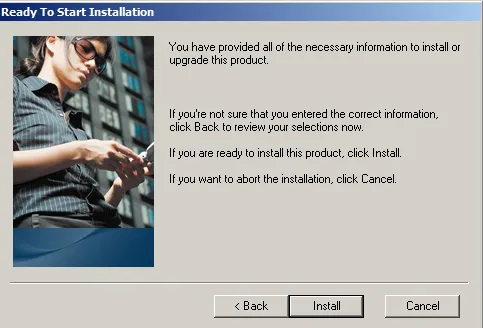
Start installation
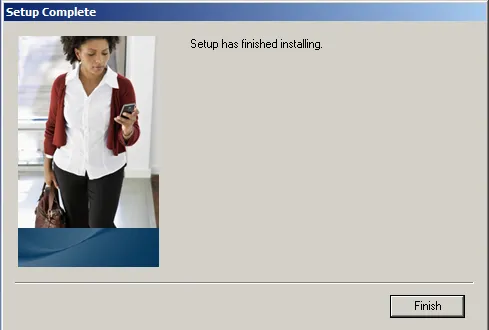
This ends the installation of SAP Afaria 7.00. Now a fully functional SAP Afaria environment is installed and available on the same Windows Server 2008 R2. Be aware that it is a version of Afaria from 2012. Next step is to upgrade this version to the latest version available.