

To enroll an iOS device to SAP Afaria, a certificate for this device is needed. For mobile apps, SAP Afaria client can be used to request a user certificate from the CA. All these requests are handled by SAP Afaria, making the certificate handling transparent to the user. For doing this, SAP Afaria needs a CA with NDE enabled.
Pre-requisite
- Install a CA
- Add a user for NDE
Install a CA
See previous blog about how to install a CA.
Add user for NDE
Create a user for NDE service using Windows tool: Active Directory Users and Computers.
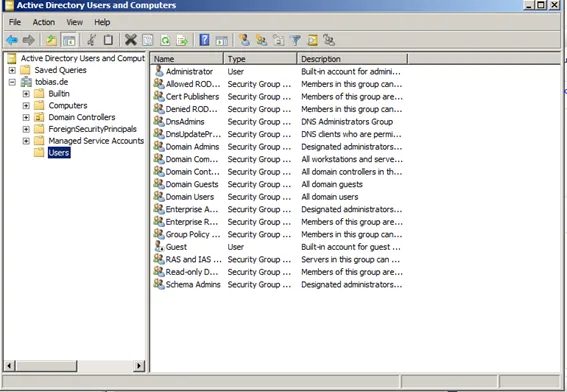
Add a new user.
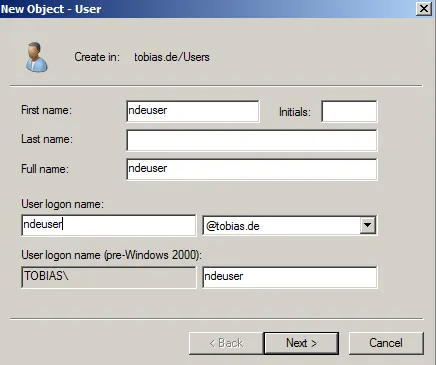
- First name: ndeuser
- Last name: n/a
- Full name: ndeuser
- Logon: ndeuser@tobias.de
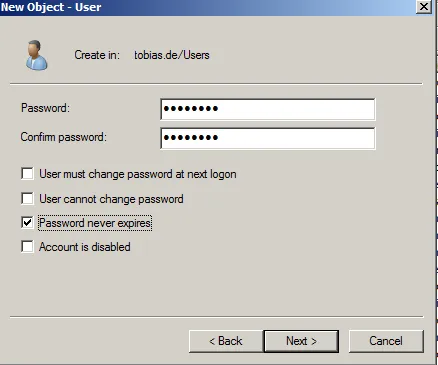
Inform password. As this is a test environment installation, it makes sense to not have a user whose password expires every N month.
- Password never expires: yes
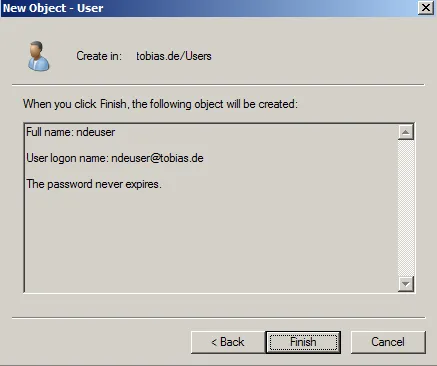
Confirm user data.
Assign user to group
Add ndeuser to IIS group using Windows tool: Active Directory Users and Computers.
Open the AD domain and go to folder Builtin. Select group IIS_IUSRS.
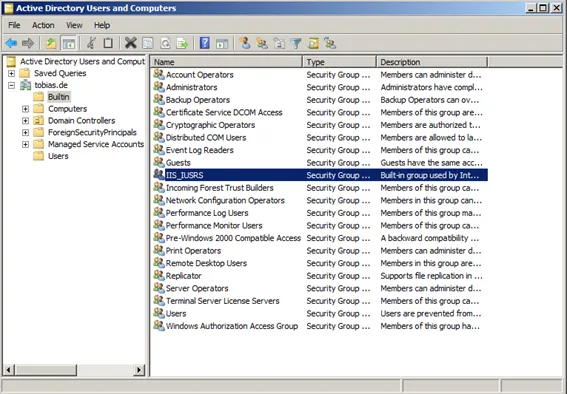
Go to tab Members
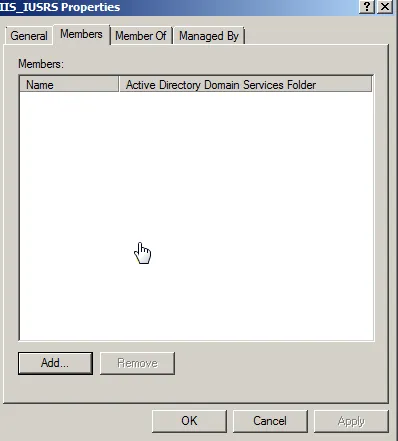
Click Add
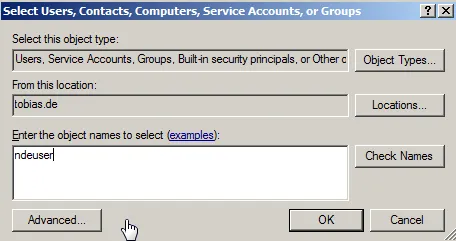
Enter user: ndeuser and select Check Names.
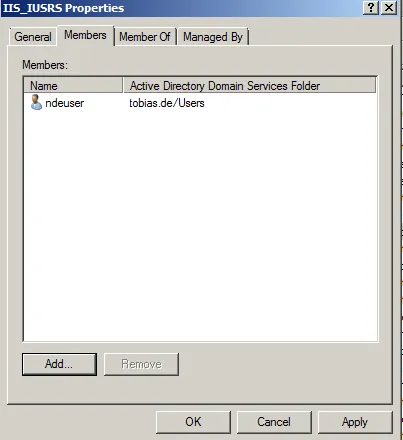
This adds the AD user ndeuser to the local group IIS_IUSRS. This is needed for the NDE service of CA.
Add service NDE to Windows Server
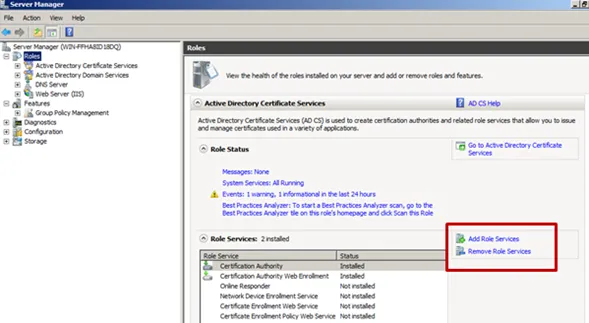
Add Role Services.
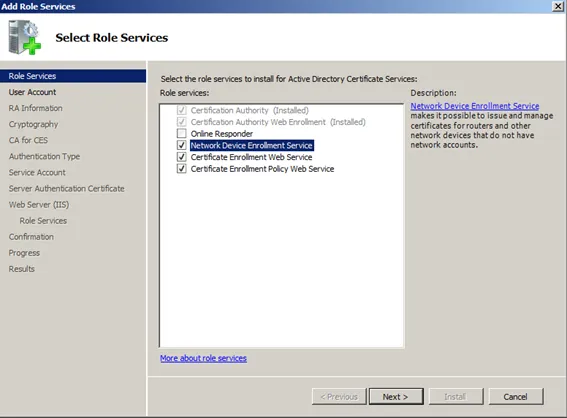
Add
- Network Device Enrollment Service
- Certificate Enrollment Web Service
- Certificate Enrollment Policy Web Service
- And all dependencies
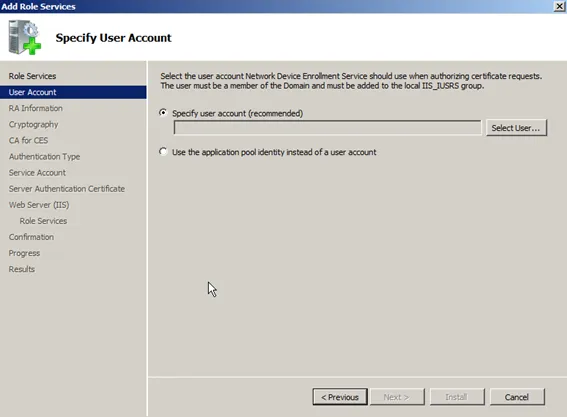
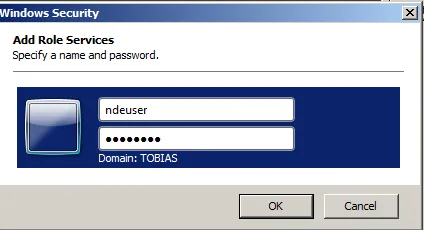
Inform the user created earlier: ndeuser@tobias.de

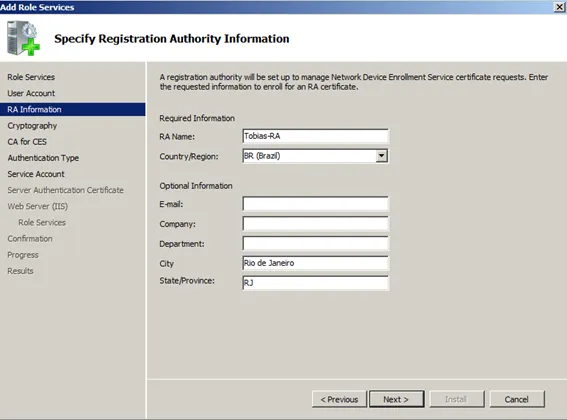
Inform registration authority (RA) information.
- RA Name: Tobias-RA
- Country: BR (or your country)
- City: Rio de Janeiro (or your city)
- State: RJ (or your state)
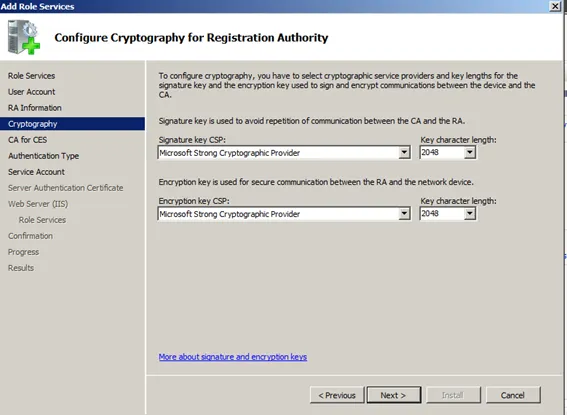
Inform key strength of RA
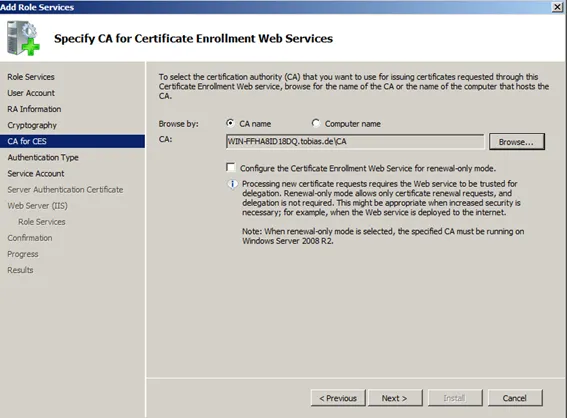
Inform the CA that will be used by NDE (use previously created CA).
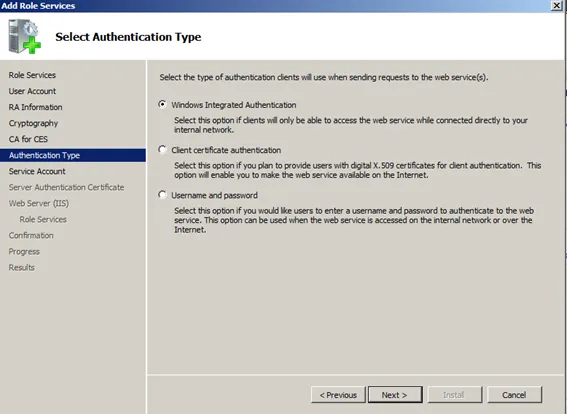
Select authentication type going to be used to log on to NDE.
- Windows Integrated Authentication: Yes
Specifiy service account: ndeuser@tobias.de
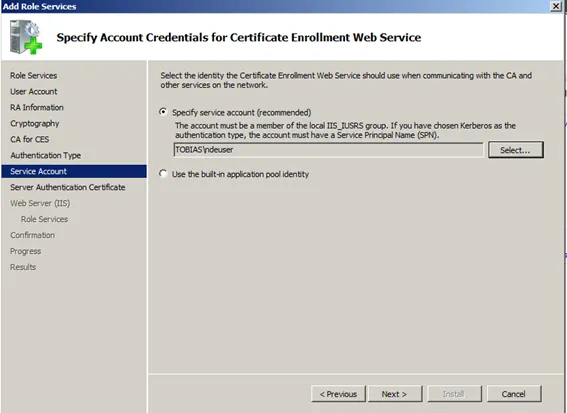
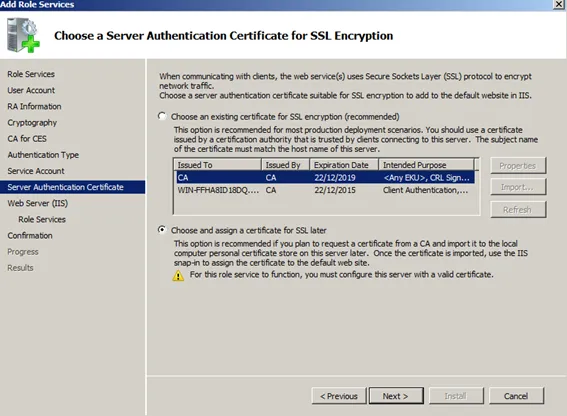
Select a SSL certificate. Chose to select a SSL certificate later, as this certificate still does not exist and will be created later on.
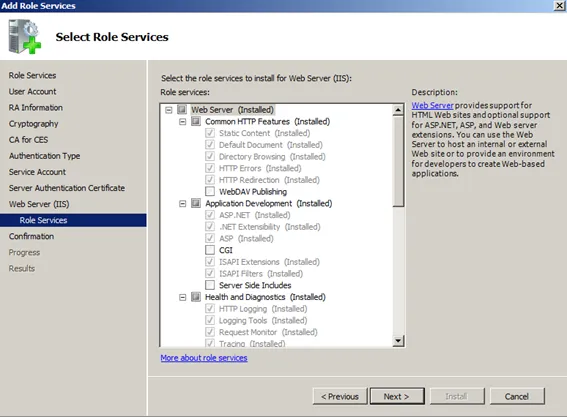
Check the selected server roles.
Confirm.
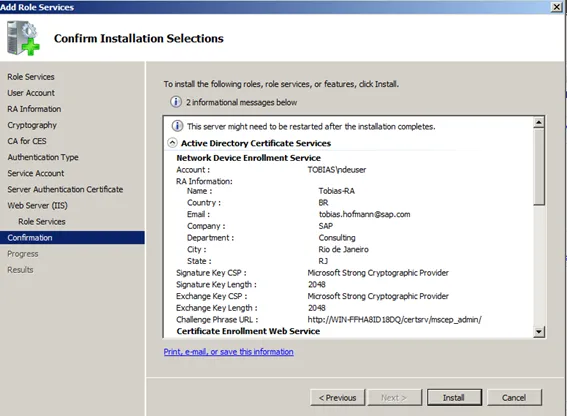
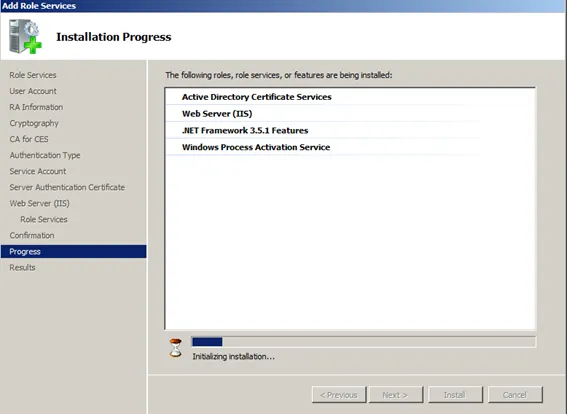
Windows installs and configures NDE.
Installation results.
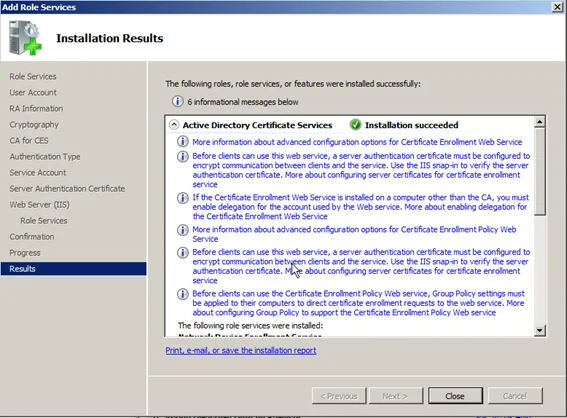
Result
NDE installed on Windows Server, using previously installed CA for requesting certificates.