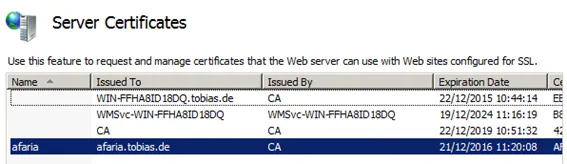
To ensure confidentiality of user data, access to SAP Afaria by users needs to be done using SSL. For this to work, IIS must use its own valid SSL certificate. To do so, first a certificate request for IIS must be created. This request will be handled by the CA (installed on same server) and the created certificate must be made available in IIS.
IIS: Create certificate request
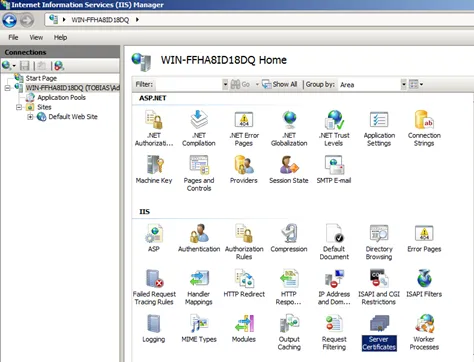
- Start IIS Manager
- Select default server and sever certificates in IIS section.
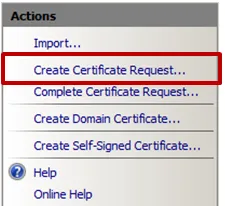
- Create certificate request
-
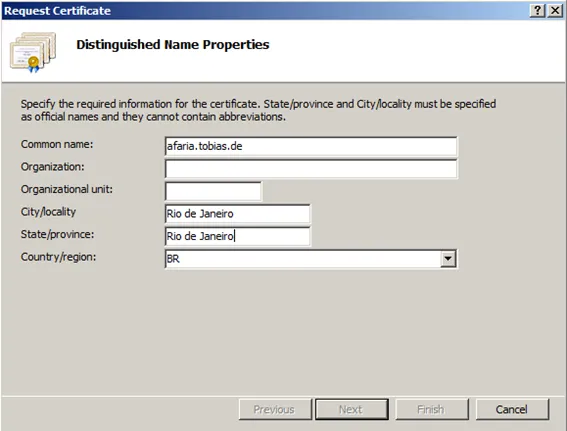
Inform server information. The CA will include this information in the final certificate.
- Common name: FQDN of the server
- Country: BR, or your country
-
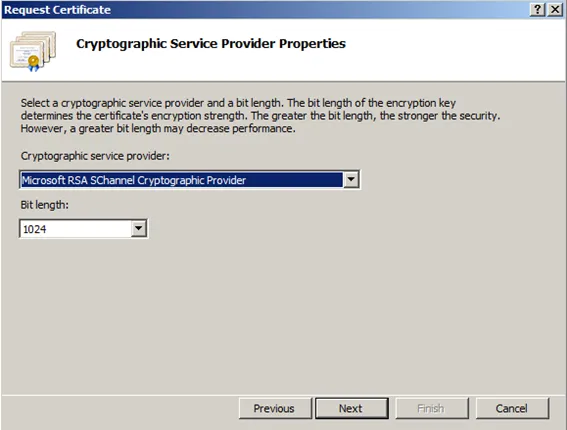
Select cryptographic service provider.
- Cryptographic service provider: Microsoft RSA SChannel Cryptographic Provider
- Bit length: 1024
- Inform file name. This is where the certificate request will be saved to. This file will be later submitted to the CA.
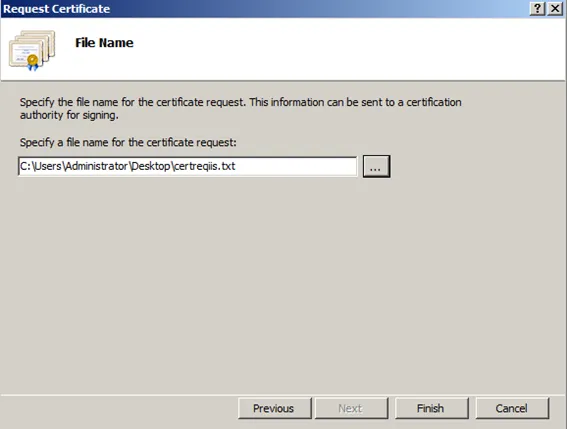
Now the certificate request is done by IIS. Next step is to submit the request to the CA.
CA: Issue certificate
As the CA is on the same server as IIS, it is only to submit the request to the CA. The certificate type is for a web server. In my case, using the CA wizard to submit the CSR did not work, as the web server template was not available. What worked was to use the command line to submit the CSR and inform there the web server template.
Command: certreq.exe –submit –attrib “CertificateTemplate:WebServer” .\certreq.txt

Select the CA to be used.
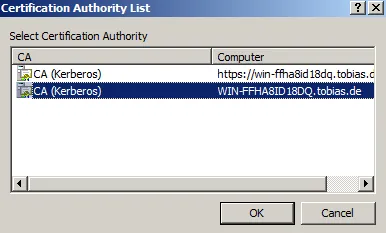
Specify path to save certificate to.
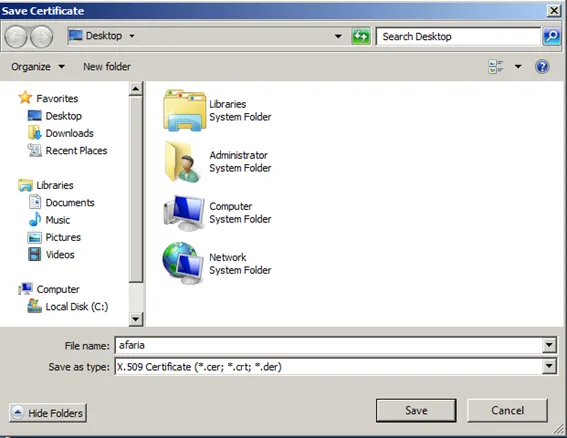
Certificate is issued and saved in CER format.

Next is to install the certificate into IIS and make it available for usage.
IIS: Install certificate
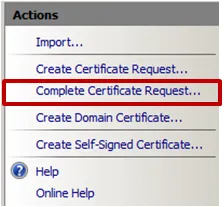
To install the server certificate, open IIS Manager console. Select Complete Certificate Request.
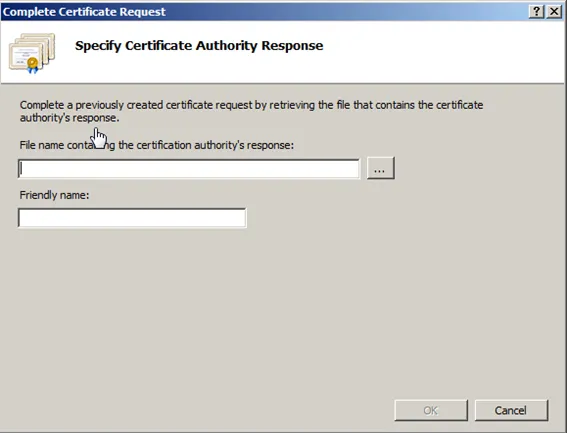
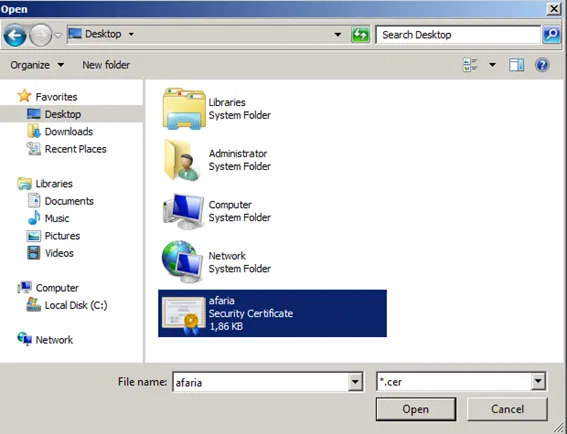
Inform the path to the certificate and na alias/friendly name. You’ll refer by friendly name to the certificate.
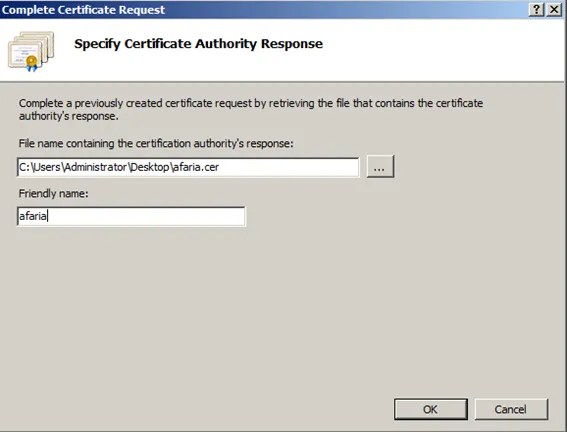
Click OK. This installs the certificate into IIS.