

Having a SSL certificate installed and available in IIS, access to web sites / applications can be secured using SSL. Next step is to secure the access to the Afaria Web Application. This will be done by activating SSL for the entire web site, that is: all resources under the default web site can be accessed using SSL. The SAP Afaria web application is not installed yet, but after it is installed, it will be run beneath the default web site by IIS. As the default web site is configured for IIS, all resources underneath it will be too.
Configuration
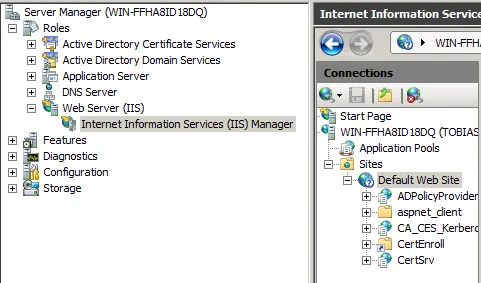
- Open IIS Manager
- Select Default Web Site
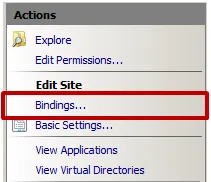
- Select bindings
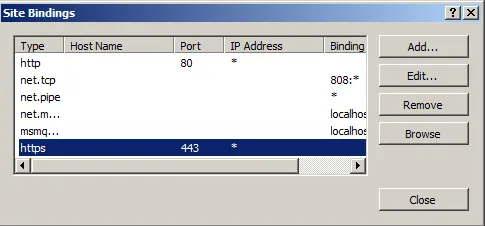
- Select https and click Edit …
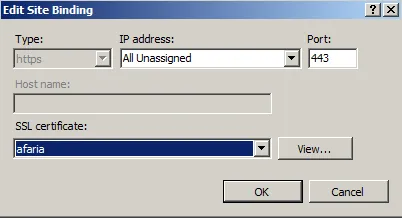
- Select SSL certificate afaria from list. Afaria is the friendly name / alias given the the IIS certificate in the previous step: installing SSL to IIS.
- Assign this binding to all IP address and port 443.
Result
IIS default web site now accessible using SSL.