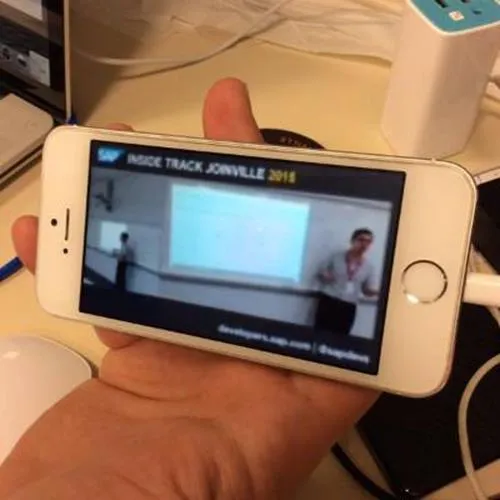
The SIT Brazil events offer a special service: videos. We do stream the videos during the event live and record them for on demand. For this to work I have set up architecture to support everyone involved: on site team, server team and the end user. The videos are recorded for later processing to publish them in high quality in our YouTube channel.
WHY?
Our goal is to make the access to SAP related knowledge as easy as possible. In case you cannot join the event IRL, you can assist the session live and in high quality. In case you are at work and your corporate proxy blocks YouTube, you can assist the stream via the event app, or the event site. For later best is to use Safari, but VLC can also show you the stream. In case you cannot assist the event live, we`ll publish the session after a few days of processing them, adding the slides to the video, to YouTube. Who knows, maybe one day we will also offer the vídeos for download, together with the slides.
ARCHITECTURE
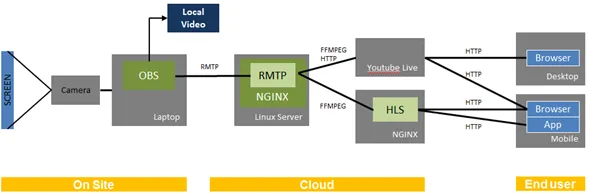
The software involved in the process is:
- OBS: Capturing the video, save it locally and send it to my NGINX server
- NGINX with RMTP: receiving the video from OBS and process it to the further channels: YouTube and HLS.
- YouTube: YouTube live event. Streams the received video to the web.
- HSL: Prepares the received video for HLS. This is done by using FFMPEG.
- App: event app that connects to the HLS stream via HTTP.
- Browser: connects to the HLS stream via the web version of the event site or to YouTube.
Several software components have to communicate with each other, on different protocols and ports, making it sometimes a challenge to set it up on site. To simplify to whole process, a central server hosted at AWS serves as receiver and distribution point to our channels. We only have to communicate with one server, and still can offer the stream in several formats. NGINX server is accessible under its own DNS name. Many companies do not like to give access to YouTube, and it is easier to get them open a port than YouTube.
OBS SETTINGS
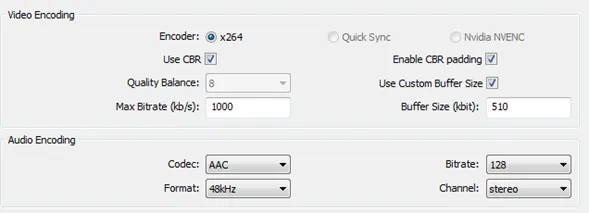
AUDIO AND VIDEO
BROADCAST
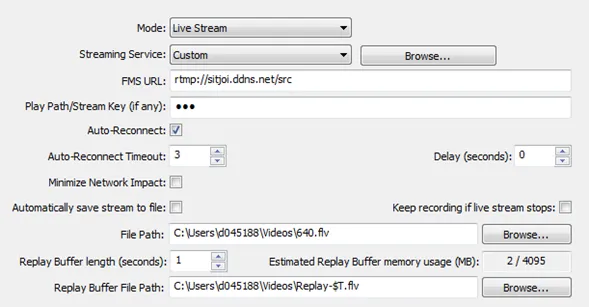
- FMS URL: the server URL of NGINX.
- Play Path: defines the name of the stream for internal handling at NGINX
- File Path: location where the stream is saved locally for later processing, etc.
STREAMING PROCESS
Easy. Once OBS is started, the input sources selected, we add some UI magic for branding and the stream is started. The target is the NGINX server in the cloud, the protocol and port is RMTP.
NGINX SETTINGS
For the NGINX setup to work, I had to add the RMTP add-on. For this, I downloaded NGINX from git + the rmtp add-on and compiled the software. That`s easy to do:
- ./configure
- Make
- Make install
Afterwards it is adjusting the configuration of NGINX, easily done using the attached file as a template: nginx.conf 🔗
What is the process flow in NGINX? The configuration file has a two room’s setup. One OBS can send its stream to one room only. To serve the stream of two rooms, two OBS setups are needed, while the same NGINX server can be used.
OBS1 -> /src/
From there, NGINX pushes the stream to YouTube and to HLS. HLS is configured to make the stream available under /hls/roomN/