SAP showed a demo of BUILD at its TechEd keynote at Las Vegas. The 1st time I tried to install BUILD on my laptop was shortly after it was launched and I was still in the hospital; and I failed getting it working. Afterwards I mainly interacted with BUILD using SAP`s internal system. The installation is not an easy next, next, next wizard (yet), but as BUILD is a really impressive tool for UX, AND OPEN SOURCE, I believe nobody should be left out of using BUILD just because the installation isn`t doable by everyone. So I created this blog showing how I installed BUILD on my Windows 7 64bit laptop. I hope it helps people getting started with exploring the powerful features of BUILD.
The GitHub project outlines the prerequisites as well as the actual installation steps. Meeting the prerequisites is a must, and not so easy, as you`ll need to have the right versions made available for build to work.
PREREQUISITES
The prerequisites are
- GIT 🔗
- npm.js 🔗 in version1.4.28
- node.js 🔗 in version 0.10.33 or 0.10.38
- MongoDB in version 2.6.x
- node-gyp
Let me show you how I did make this work on a Windows 7 64bit laptop. Installing git is the easiest one. Just download it from git-scm.org. The others a little bit more complicated. Let me detail the steps here for each component.
NPM.JS
Command: npm –g install npm@1.4.28
Test
Command: npm –version

NODE.JS
You have basically two alternatives to install Node.js in version 0.10.38. Either you download it make sure that your cmd is using this version (PATH variable), or you activate the right version for your current session.
Download
There are several versions available for download from nodejs.org. You can opt to download the installer for a specific version or to download the executable. The URL to download the files for 0.10.38 is: https://nodejs.org/dist/v0.10.38/ 🔗
To download just node.exe, download it from there and save it into a directory. Run node.exe from there and check that it is the right version number
Test
Command: node.exe –version

Node package manager
This is the alternative you should prefer. Easier to use, allows to have several node version in the system and done by npm. To do so, first install nvm. On Windows, you`ll have to use nvmw.
Command: npm install –g nvmw
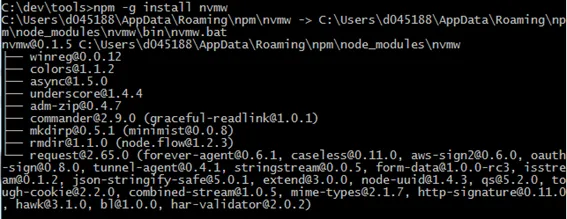
Now you can use nvmw to install a specific version of node.
Command: nvmw install v0.10.38
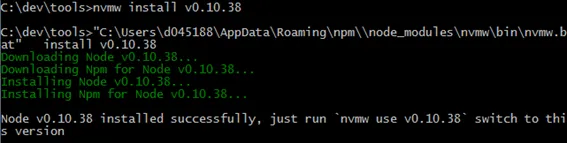
Activate node.js 0.10.38
Command: nvmw use v0.10.38

Test
To see if 0.10.38 is now activated, run node with the version parameter
Command: node —version

Python
Download Python 2.7 installer and install python. Ensure that the python executable binary is in the path.
Test

Node-gyp
Looks like the installation of BUILD will have to compile some stuff, so node-gyp is being used. The installation of node-gyp is more complex and can be found here: https://github.com/nodejs/node-gyp/blob/master/README.md#installation 🔗
For Windows 7 64 bit, it means to install two components:
- C++ compiler and
- Windows 7 SDK
C++ compiler
The compiler is Microsoft Visual Studio C++ 2013 for Windows Desktop. Download it from Microsoft: http://www.microsoft.com/en-gb/download/details.aspx?id=44914 🔗
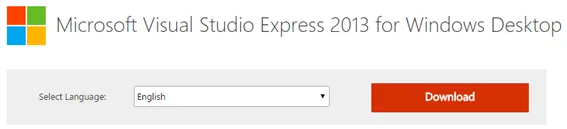
Select the version you want to download. I recommend the online installer.
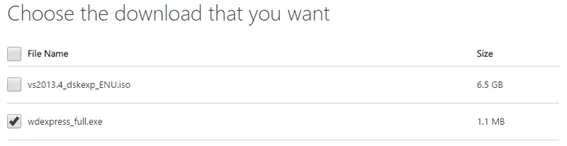
After downloading the online installer, run it
Accept the license term to start the 7 GB install
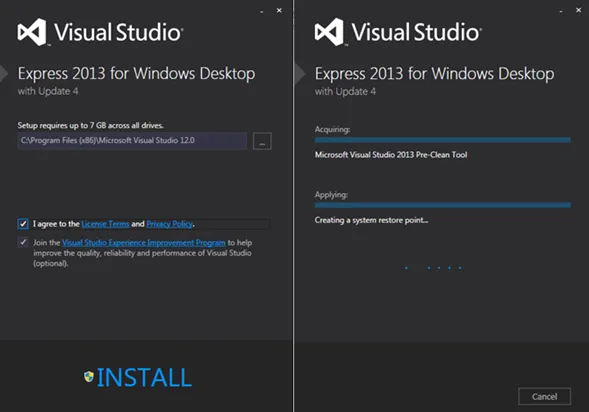
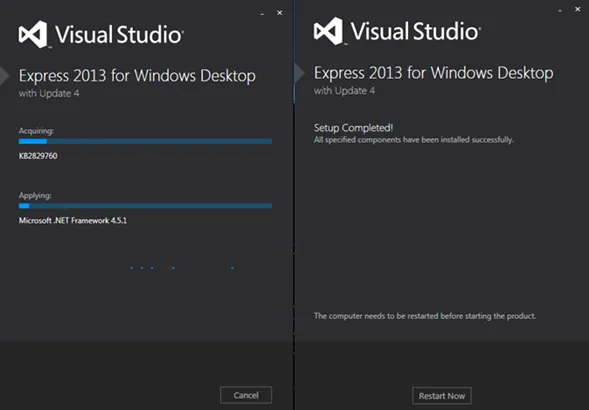
Restart computer.
Windows 7 64bit SDK
Download the Windows 7 64bit SDK from Microsoft: http://www.microsoft.com/en-us/download/details.aspx?id=8279 🔗
Run the installer
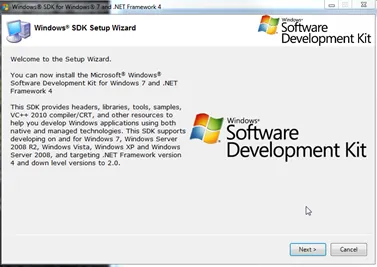
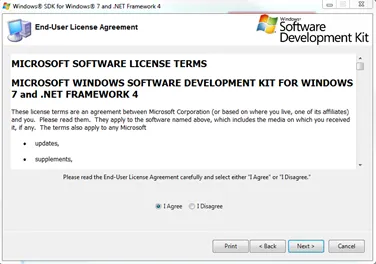
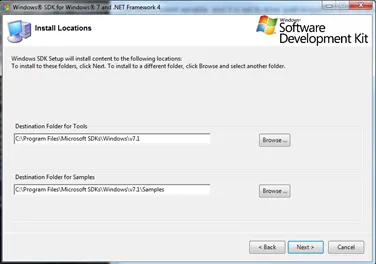
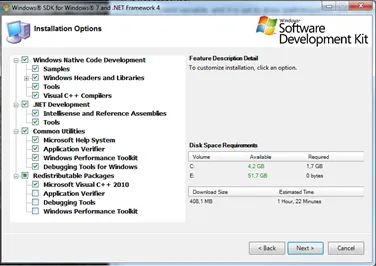
Select the components you want to install. Best is to leave the default.
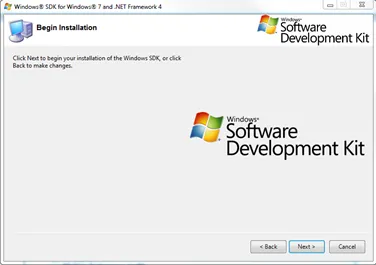
This starts the installation and download of necessary files.
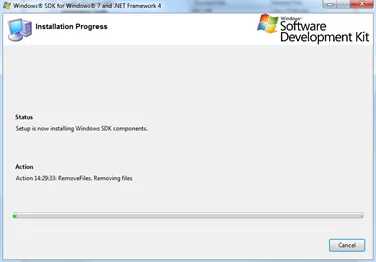
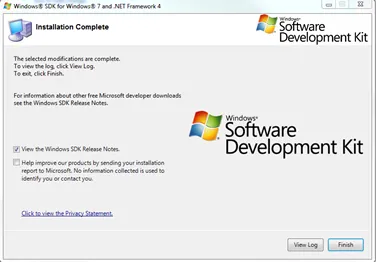
Result: SDK is installed.
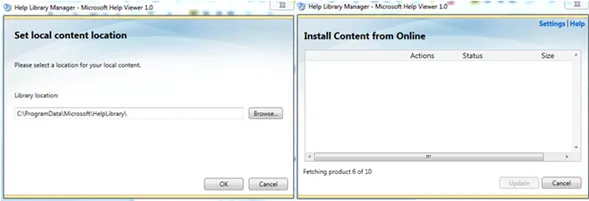
Afterwards, some strange Help Library Manager pops up and starts to fetch things from the Internet. Just let it finish and then exit it.
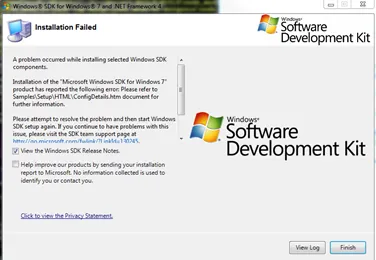
Possible error
Solution
“To resolve this issue, you must uninstall all versions of the Visual C++ 2010 Redistributable before installing the Windows 7 SDK. Checking the list of installed programs reveals that I do have this library installed.” Microsoft 🔗

Uninstall these components
Install mongo db
Download binary zip 🔗 from Mongo DB. Version: mongodb-win32-x86_64-2008plus-2.6.11. Follow install instructions 🔗 from Mongo DB.
-
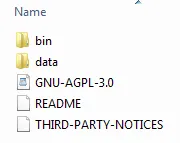
Extract zip file to folder: C:\dev\tools\mongodb-2.6.11
-
Create db data folder data\db
-
Start mongo db from bin directory. Start mongo db and give path of database directory as parameter:
Command: mongod.exe –dbpath “C:\dev\tools\mongodb-2.6.11\data\db”
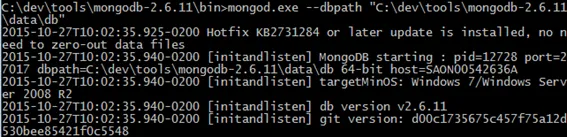
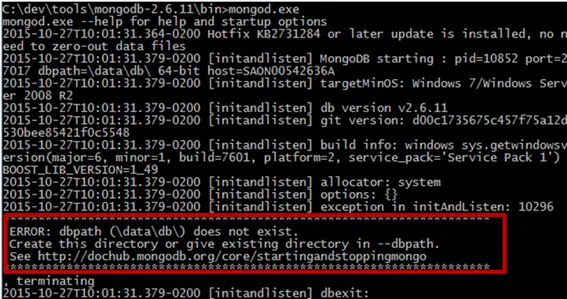
Note: without the db data directory, mongo db won`t start.