Pre-requisite
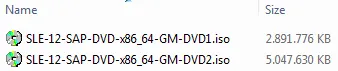
Download and install SUSE Enterprise Linux 12 from Suse and install it. The OS is available as 2 DVD ISOs, 7.6 GB of data. If I remember correctly, I only needed DVD1 in the end.
Download SAP NetWeaver 7.5 installation files. As DB, I am using MaxDB. Total of 5.35 GB:
- Kernel
- MaxDB
- SWPM
- Installation
Installation
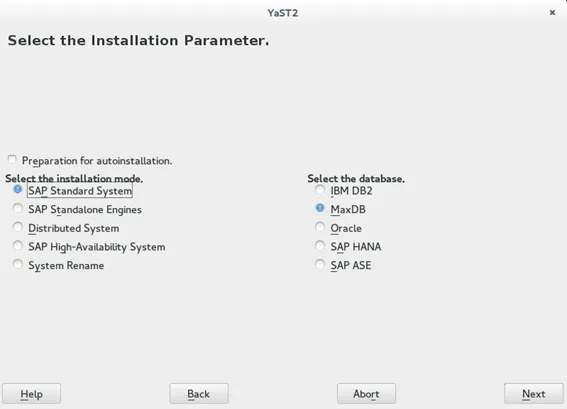
Copy all files to your Linux server. Place them into a folder that everyone can access and unzip the files. I used /mnt/sapinst and gave all users read permission. This is necessary as the installer creates an SAP adm user and runs the installation under this user id. To start the installation, call the SAP Installation Wizard. Inform the basic data of the SAP system you are going to install:
- Standalone
- DB type: MaxDB
- NetWeaver 7.5
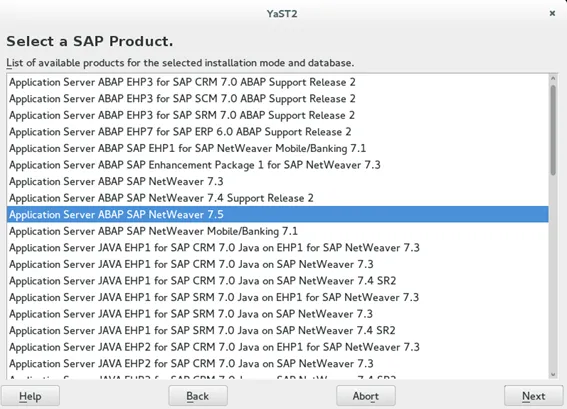
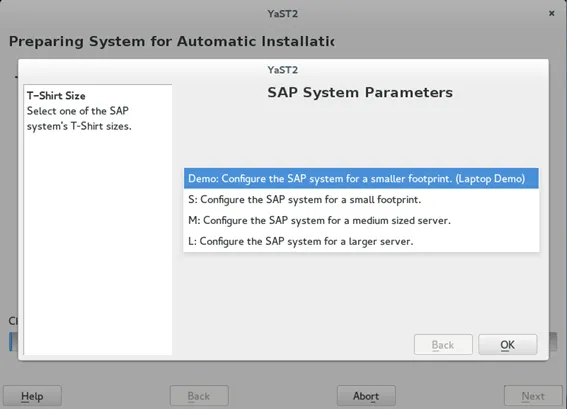
The wizard will ask you to provide the sizing of the system. Of course, on a laptop, demo is enough.
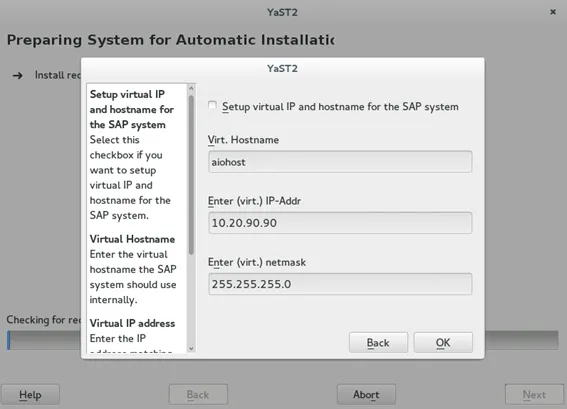
A virtual IP and hostname can be configured, if you wish. Not necessary, recommended, but I opted to not use this.
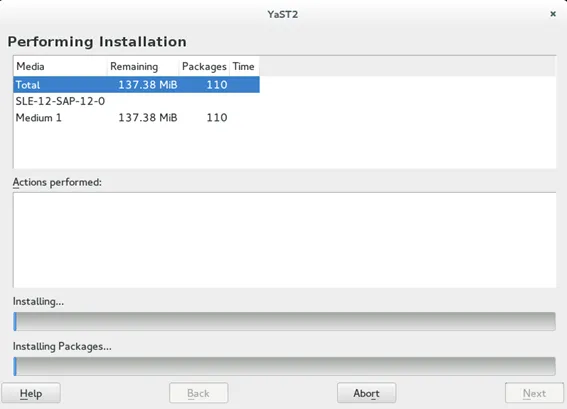
With the gathered information, Yast2 is going to install additional software.
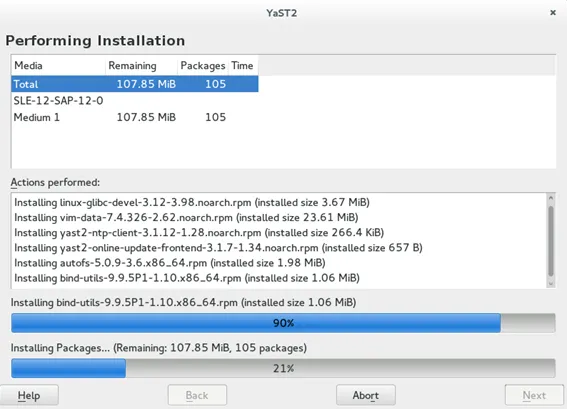
Next you have to inform the wizard where to find the installation data. That’s the files downloaded and extracted before. Do this for:
- Software provisioning manager
- Installation
- Kernel
- MaxDB
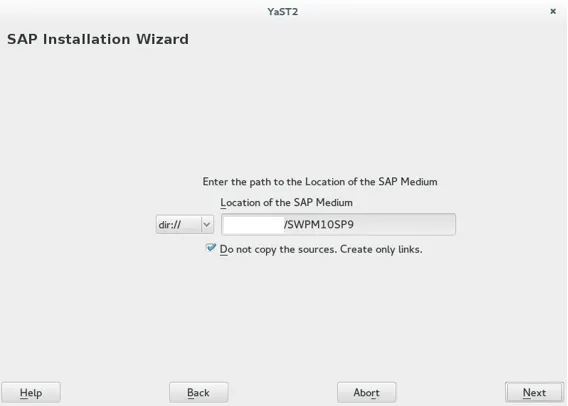
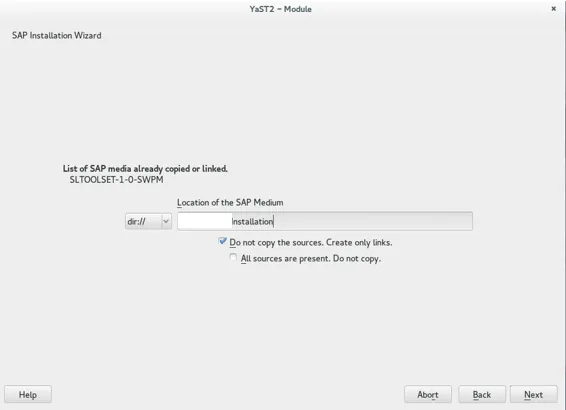
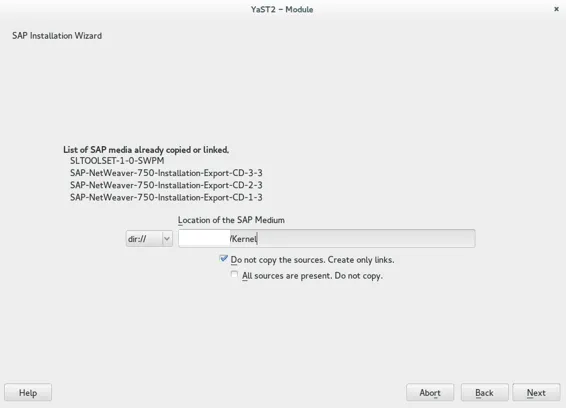
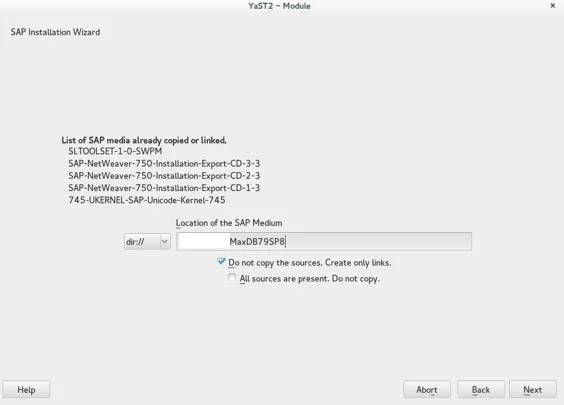
To add the medium, confirm that you want to had another one each time.

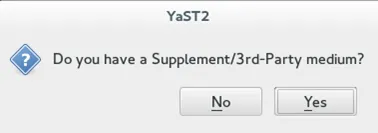
After adding all needed data medium, select no and also inform the wizard that you do not have an additional medium: No.
SUSE documentation told me that now sapinst is called and started. Did not work for me, so I had to start it manually (which, btw, means, that all the above steps were a waste of time as I had to add each medium again in sapinst). Nevertheless, in case you have more luck than me, sapinst should start and ask you some more questions like system name, SID, schema name, and so on. And then starts installation.
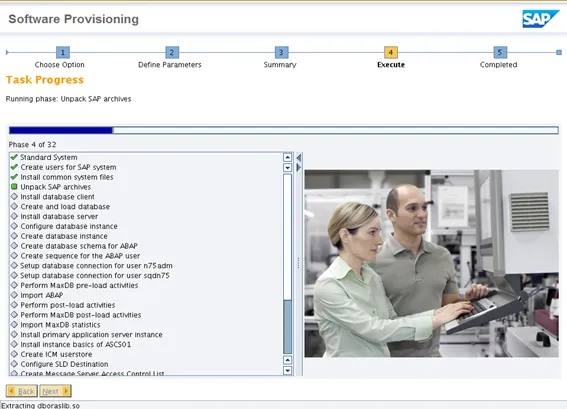
Takes a while. Import ABAP steps takes some time. In case anything is configured 100% and the system has all the libraries and the user premissions needed for an SAP system, the installation will just run through.
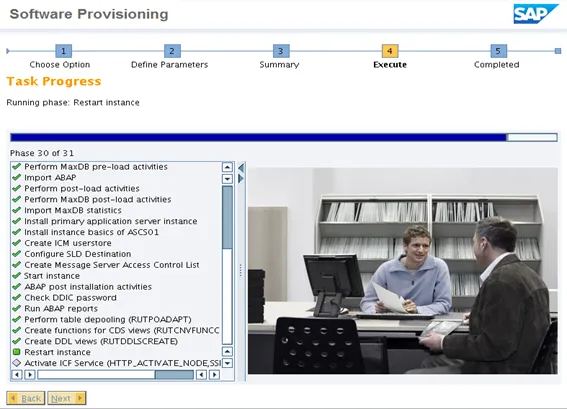
When you reach the last step of the installer, you can see that the NW ABAP system is being started and the final configuration is executed by calling some BAPIs.
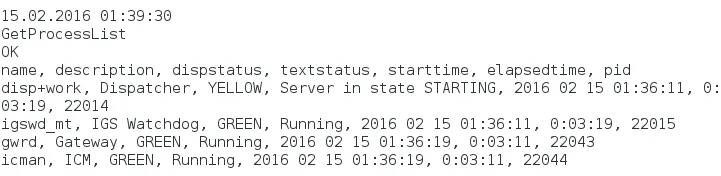

Validation
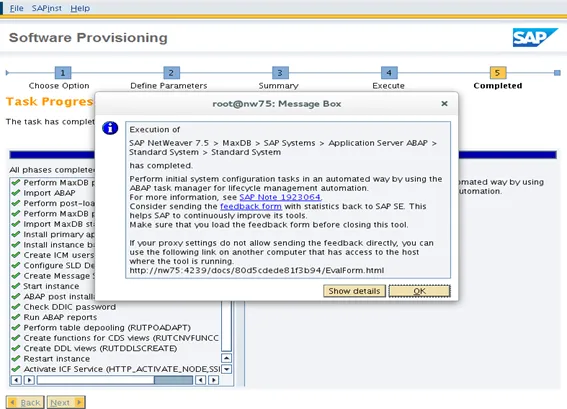
After the installation is finished, you see the confirmation dialog. The dialog contains a SAP Note pointing to a note explaining how to speed up initial configuration of your new system. Read the note, or read my blog on this.
Now you can log on to the system.
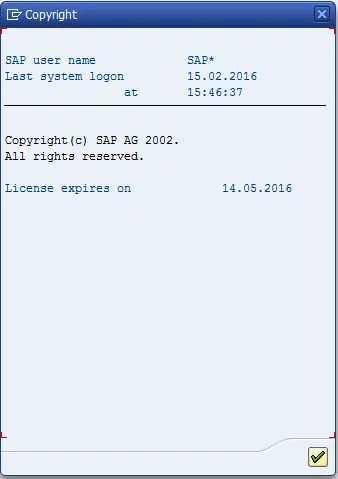
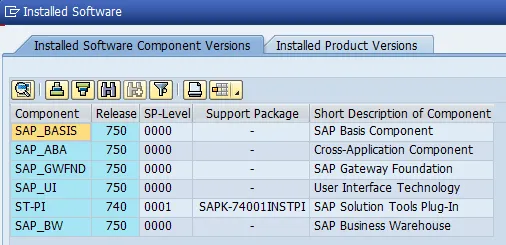
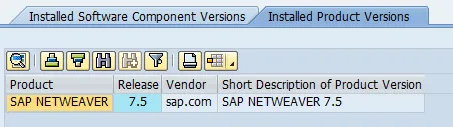
In the system status, you can check the system information. Congratulations, it is a SAP NetWeaver ABAP 7.5 SP00 system!