

To test if OCSP is working, you need to have a certificate with OCSP information included. This is only available for certificates emitted AFTER the service was installed, configured and activated on the CA. Therefore, you`ll need to first create a new certificate for your tests. Depending on your CA configuration, you can use OpenSSL to create a request or will have to use the Windows integrated tools. I will show here how to use a CSR created by OpenSSL and a Windows Enterprise CA.
Create CSR with OpenSSL
openssl req –new –newkey rsa:2046 –nodes –keyout dummy.key –out dummy.csr
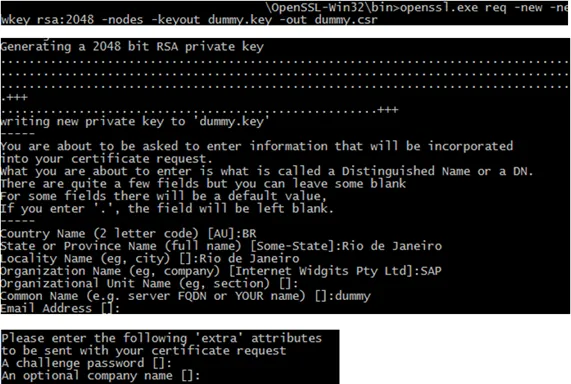
This creates a key file and the CSR in Base64.
Submit CSR to CA
Certificate snap-in
MSFT Enterprise CA needs the CSR created for a specific template, something that OpenSSL is not offering. If you submit such a request to the CA via MMC, you get an error message.
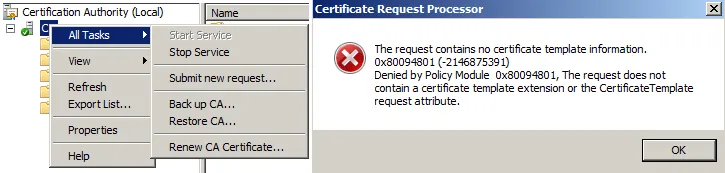
More information
- https://support.microsoft.com/en-us/kb/910249 🔗
- https://technet.microsoft.com/en-us/library/cc782583.aspx 🔗
CA Web Interface
Open the web enrollment server in your browser. Click on Request a certificate.
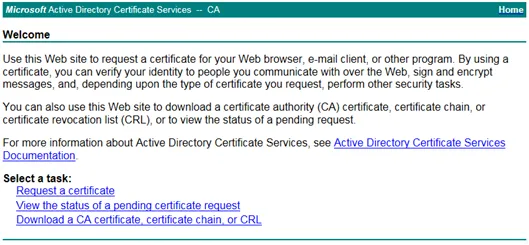
Go to the advanced options.
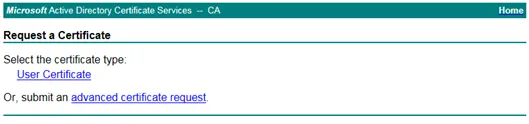
Paste the Base64 encoded CSR in the input field. Select as certificate User.
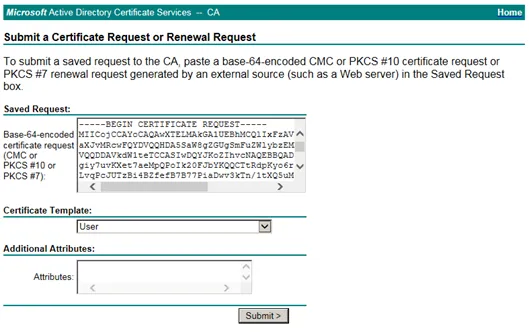
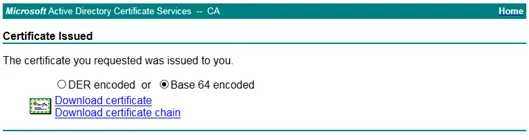
Submit the request and download the generated certificate.
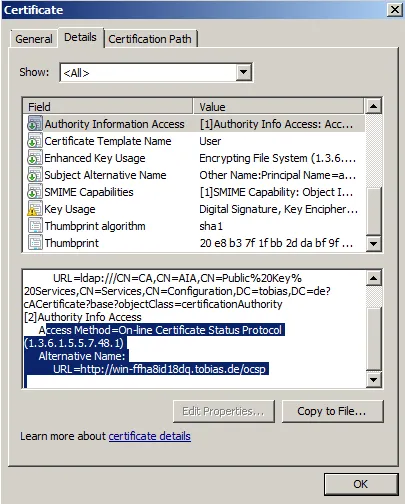
Take a closer look at the certificate. In the AIA section, OCSP must be shown.
Test OCSP service
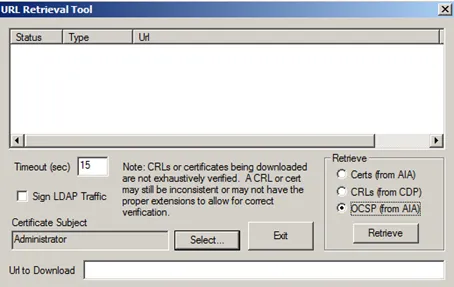
In the above step, a new user certificate was created, containing OCSP information. To test if OCSP is working, Microsoft is offering the certutil tool.
certutil –URL dummy.cer

In the Retrieve box, you can select how to certificate information should be retrieved.
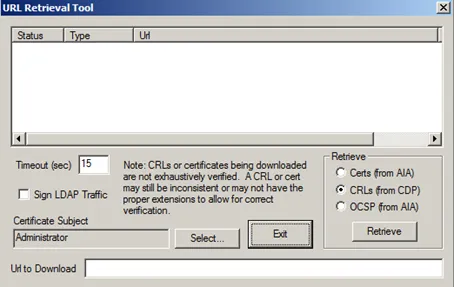
Select OCSP.
Check the status

Result: Failed

Result: Unsuccessful

Result: Verified
