

Download
Download the installation file from SAP Market place and copy it on the SMP3 server.
tar zxvf ONLRETBANK83001P_1-81000501.TGZ
cd ebf25660/
unzip RetailBanking_8.3_SP01_PL01_LINUX64.zip
This will give you the installation files in the folder.

Start installation
The installer is the folder SAPOnlineRetailBanking8.3.1.1.
cd SAPOnlineRetailBanking8.3.1.1/
sh ./install.sh

Press enter to start the wizard. You’ll have to inform several paramters, like SMP3, Database, etc.
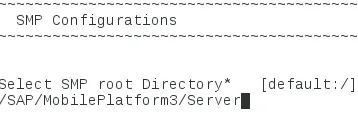
SMP3 configuration
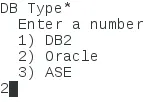
Oracle Database configuration
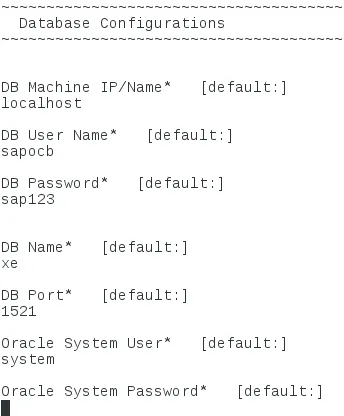
Inform the path on your system where Oracle is installed. The path contains the DB tools. For Oracle XE, the path is: /u01/app/oracle/product/11.2.0/xe/

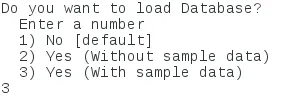
Load sample data into database
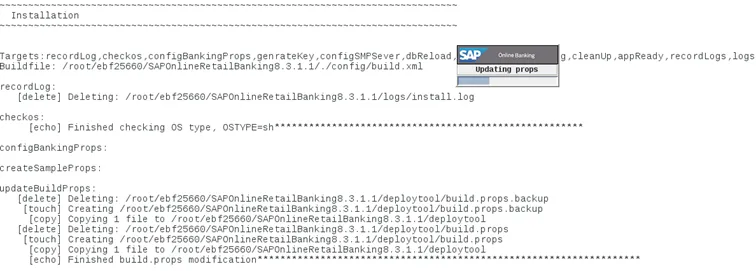
Installation starts
Database is being created

After a while, the installer should finish

Validation
The folder com.sap.banking.omnichannel.repository must have been created as a p2 repository. Check for it via
ls /SAP/MobilePlatform3/Server/p2/com.sap.banking.omnichannel.repository/
