

I got a new 10 TB disk. Before I’ll add this one to a RAID, I want to play around with it, aka: test the drive. Therefore, I’ll need to format the drive to mount it. And before that, I need to create a partition.
FDISK
In the good old days, you used fdisk 🔗 to partition a HDD. Since a few years, fdisk was replaced by parted as fdisk got some issues with large. Nevertheless, it still works.
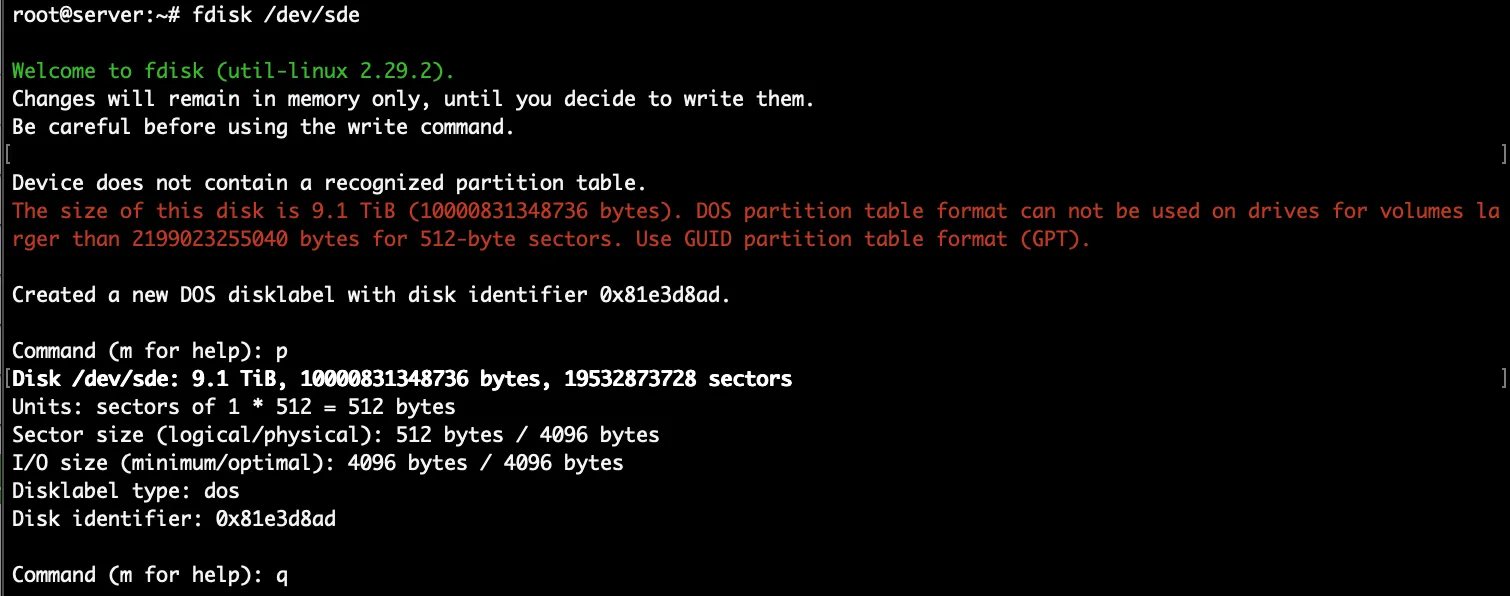
Make sure to create a GPT partition table (g), and not the old new partition (n) alternative. Creating a new partition using “n” gives you a 2 TB partition.
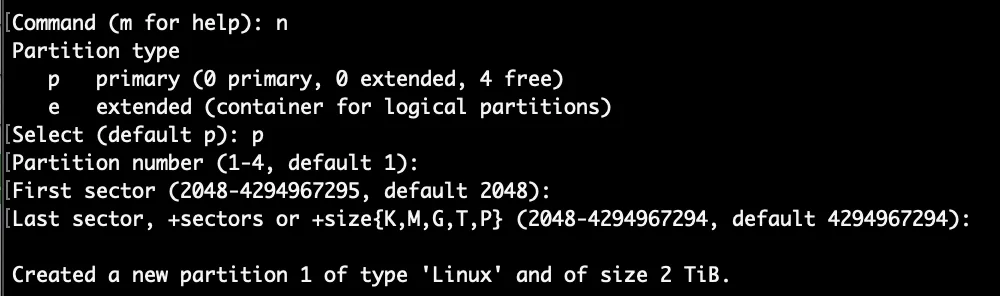
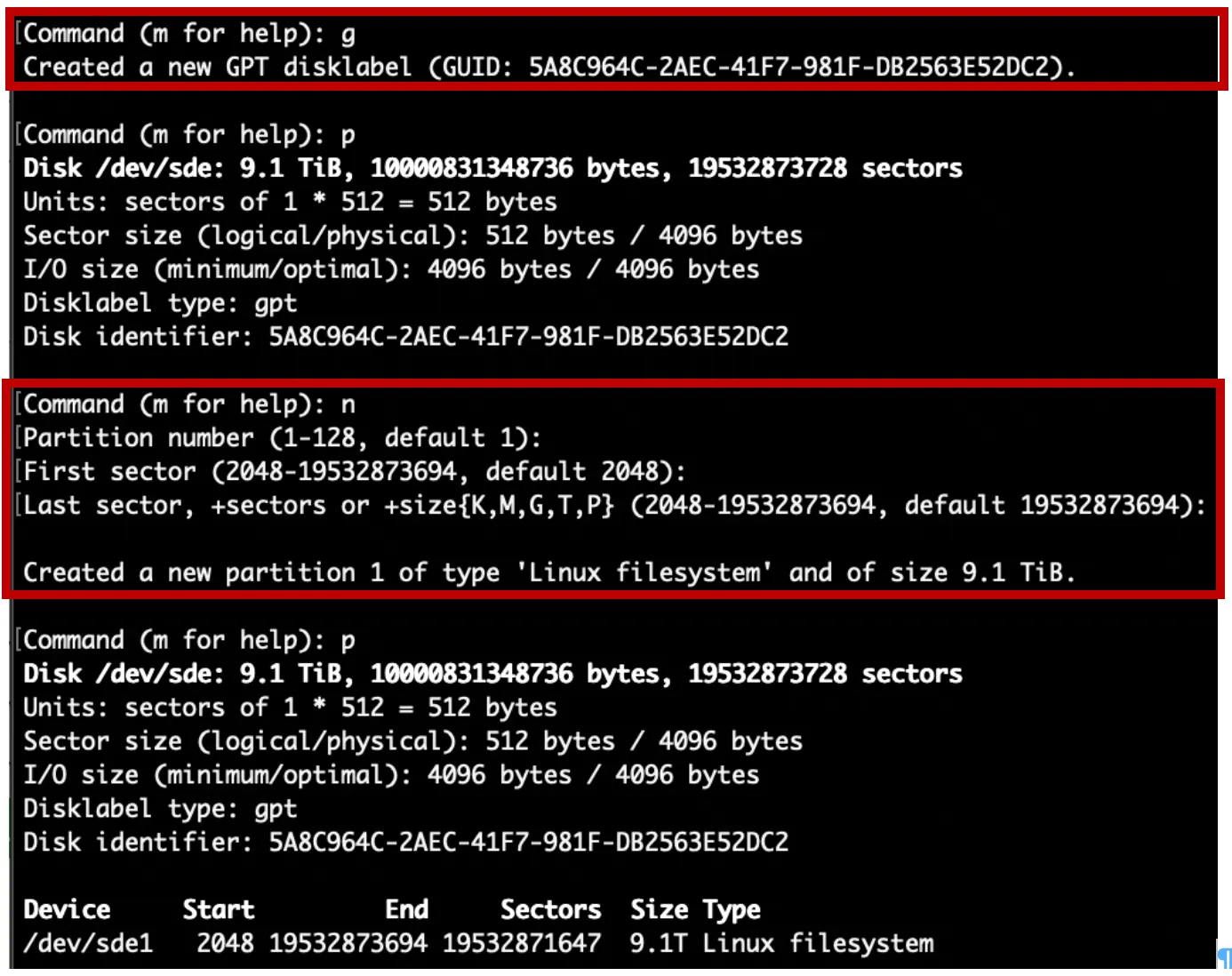
Creating a new disklabel of type GPT using “g” gives you 10TB. The create the GPT disklabel and the new partition, use: g & n.
PARTED
An alternative to fdisk is parted 🔗. Parted is newer than fdisk and there are GUIs available to make it easier to end users to use it. Parted allows to pass parameters to it and do all the partition and sizing stuff in one command.
parted -s -a optimal /dev/sde mkpart primary ext4 0% 100%
Create Filesystem
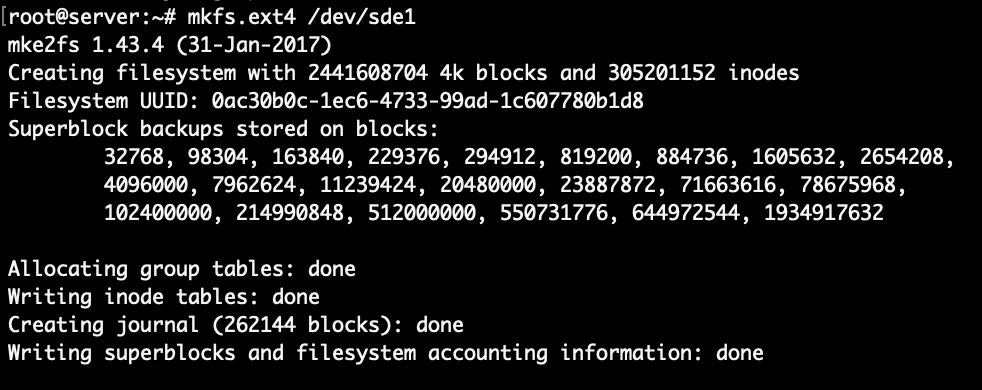
Finally, after the HDD is partitioned, it’s time to format the partition with EXT4 🔗. Of course you can use a different filesystem.
mkfs.ext4 /dev/sde1
mount /dev/sde1 /mnt/sde/
