

This is the final step of the task to establish a trust between SAP Gateway and Keycloak. The Keycloak SAML 2.0 IdP Metadata file downloaded in previous step is now imported into SAP Gateway as a IdP. This creates the trust on the SAP Gateway.
Import SAML 2.0 IdP Metadata file
Import the previously from Keycloak downloaded SAML 2.0 IdP Metadata file to NW ABAP.
Tx: SAML2
Switch to tab Trusted Providers
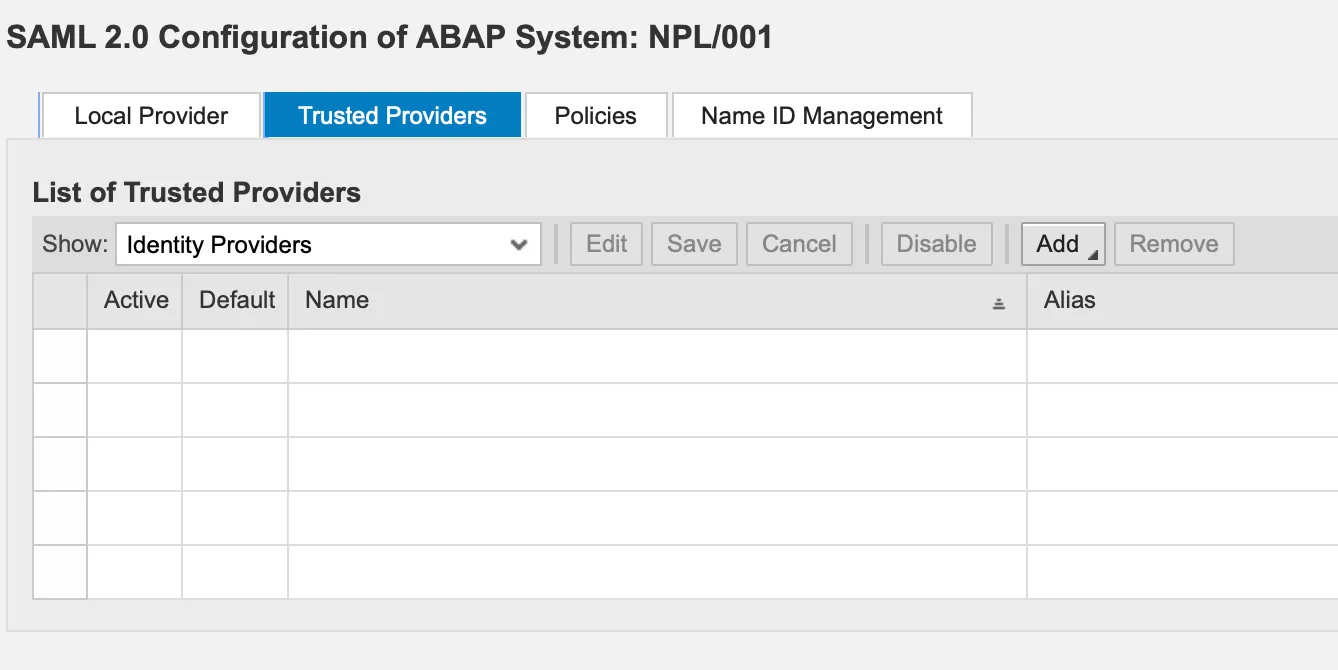
Click on Add and select: Upload Metadata file.

This starts the wizard for adding an IdP.
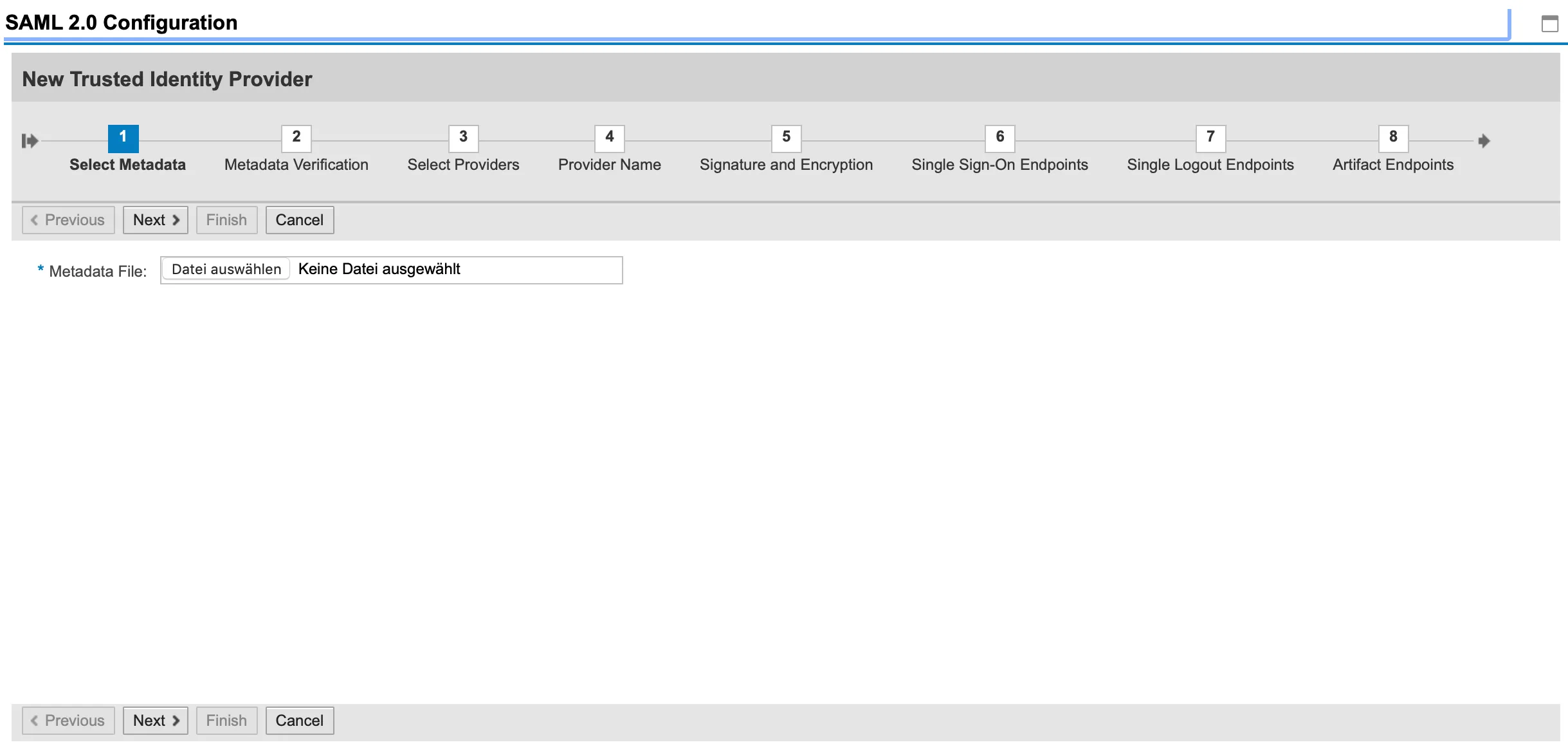
Select file: keycloak_idp_saml_metadata.xml. 🔗

Click on next and the wizard jumps directly to step 4. From now on, it’s just going through the wizard and let it add the IdP.

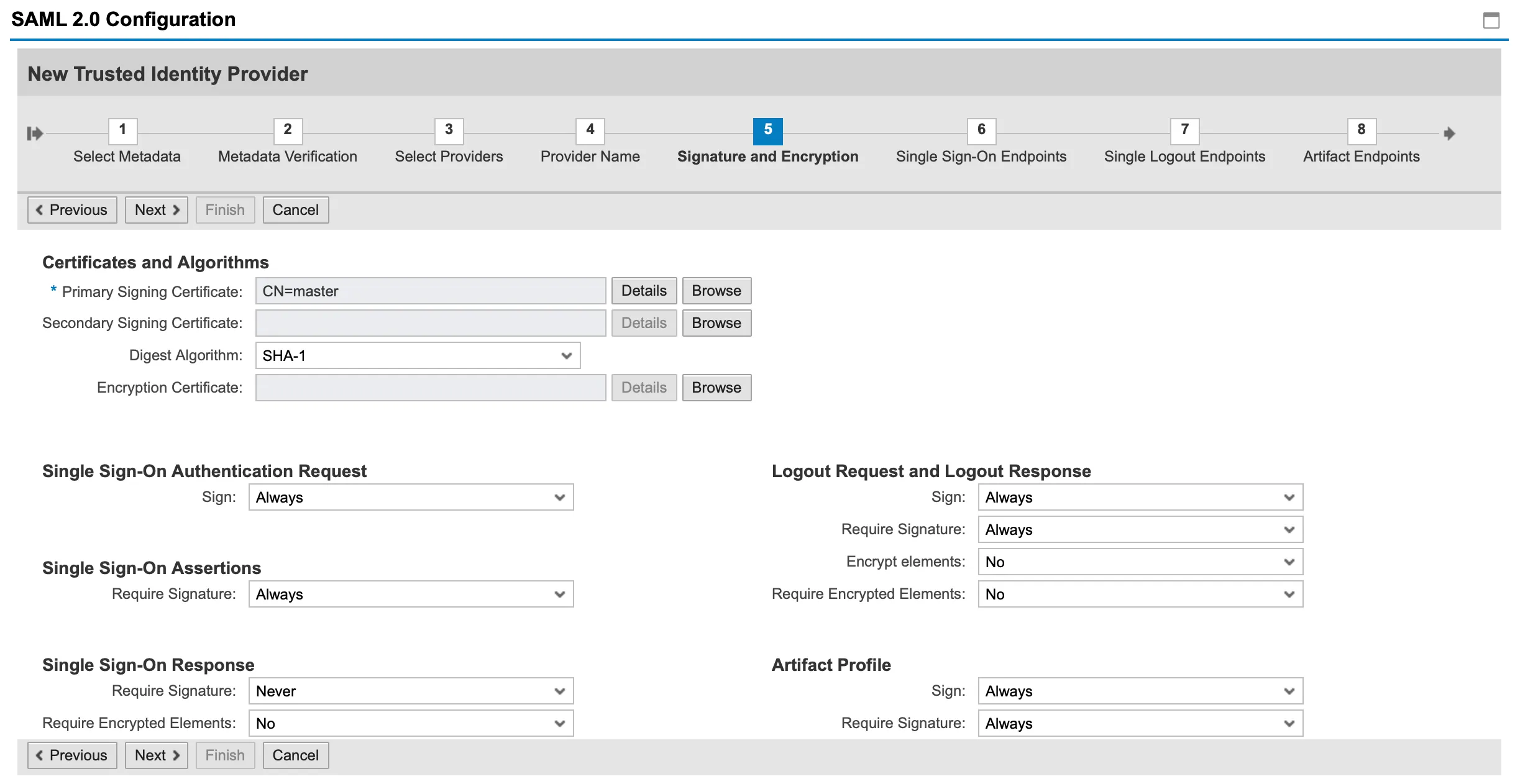
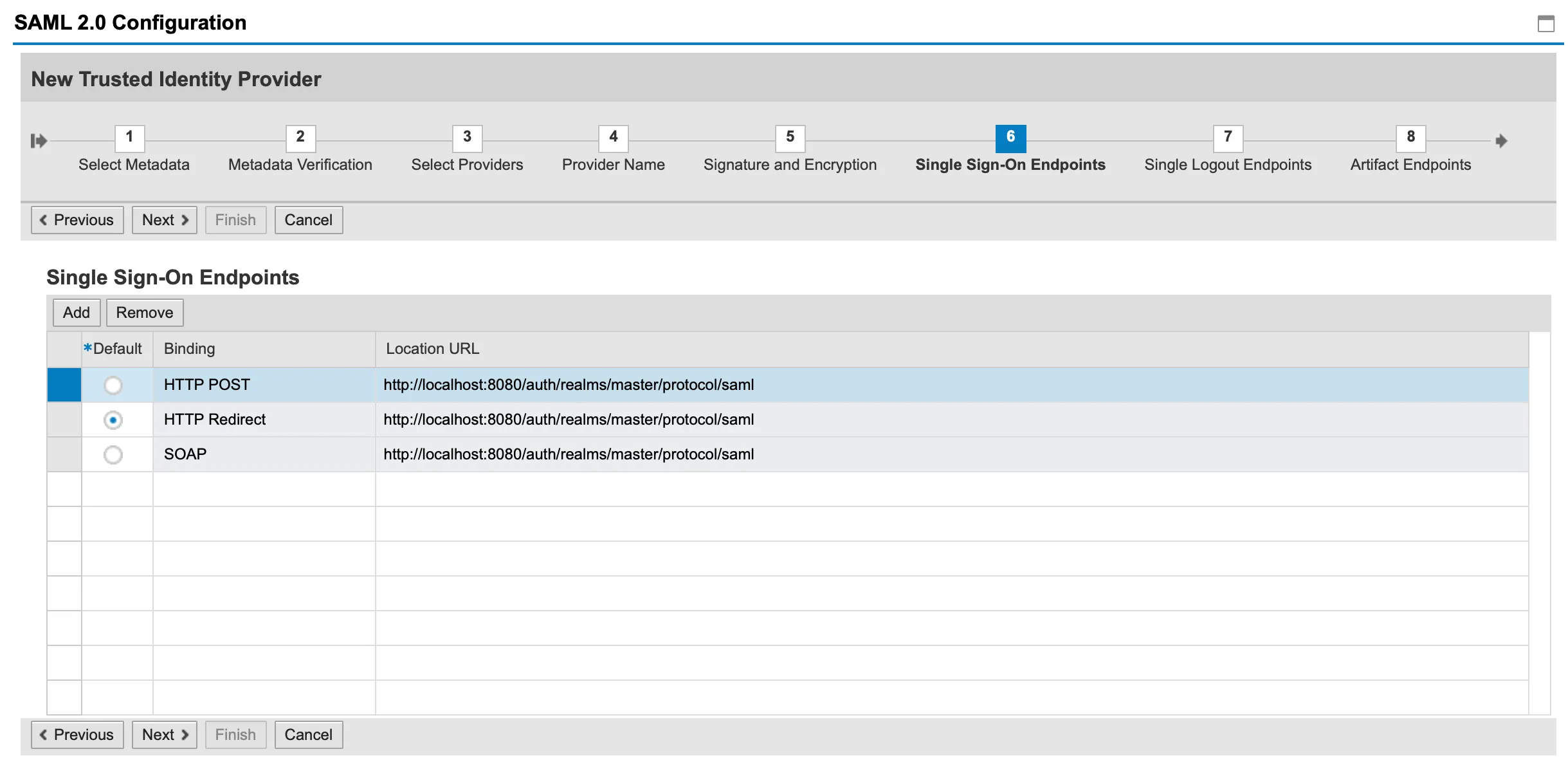
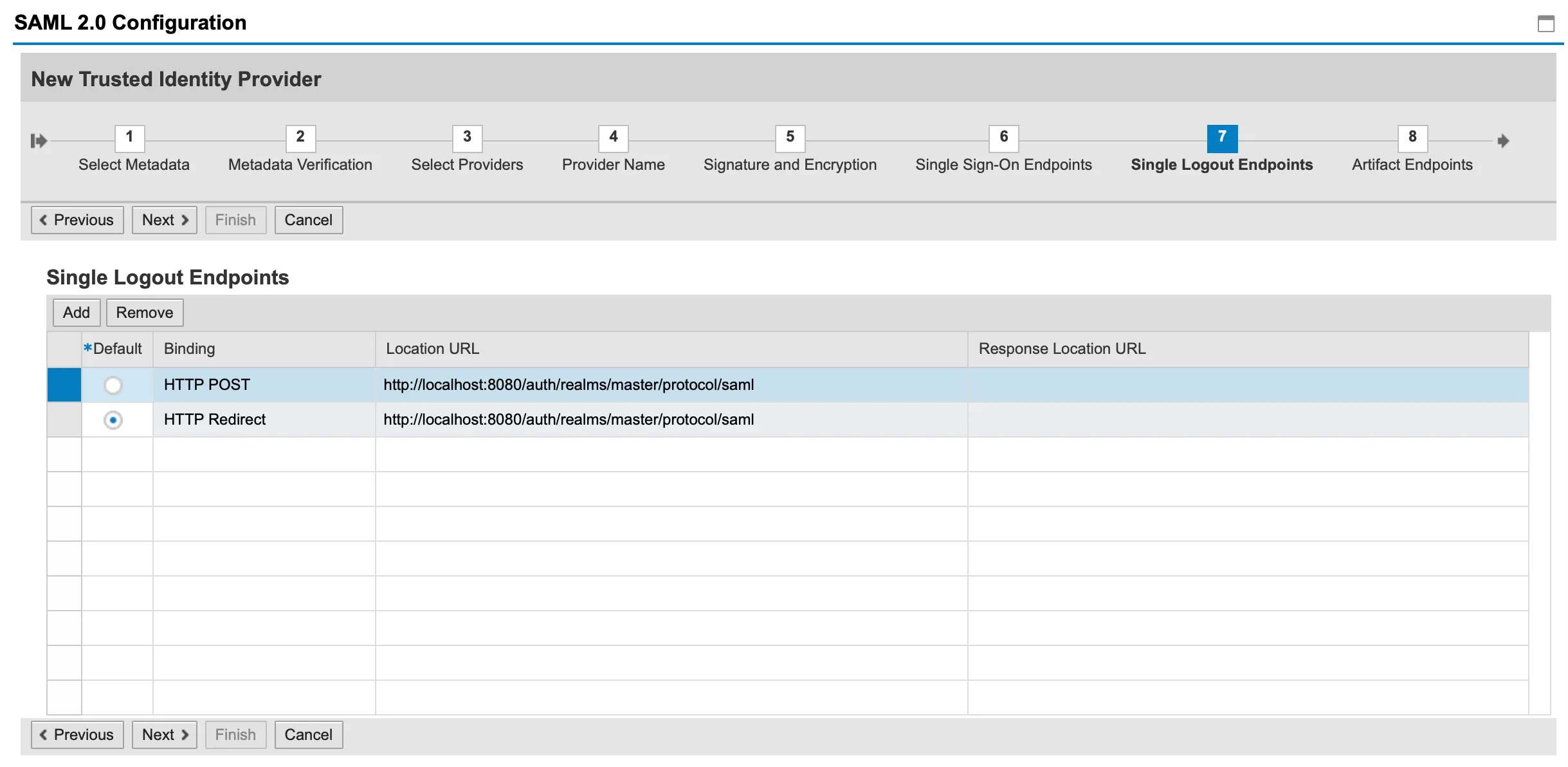
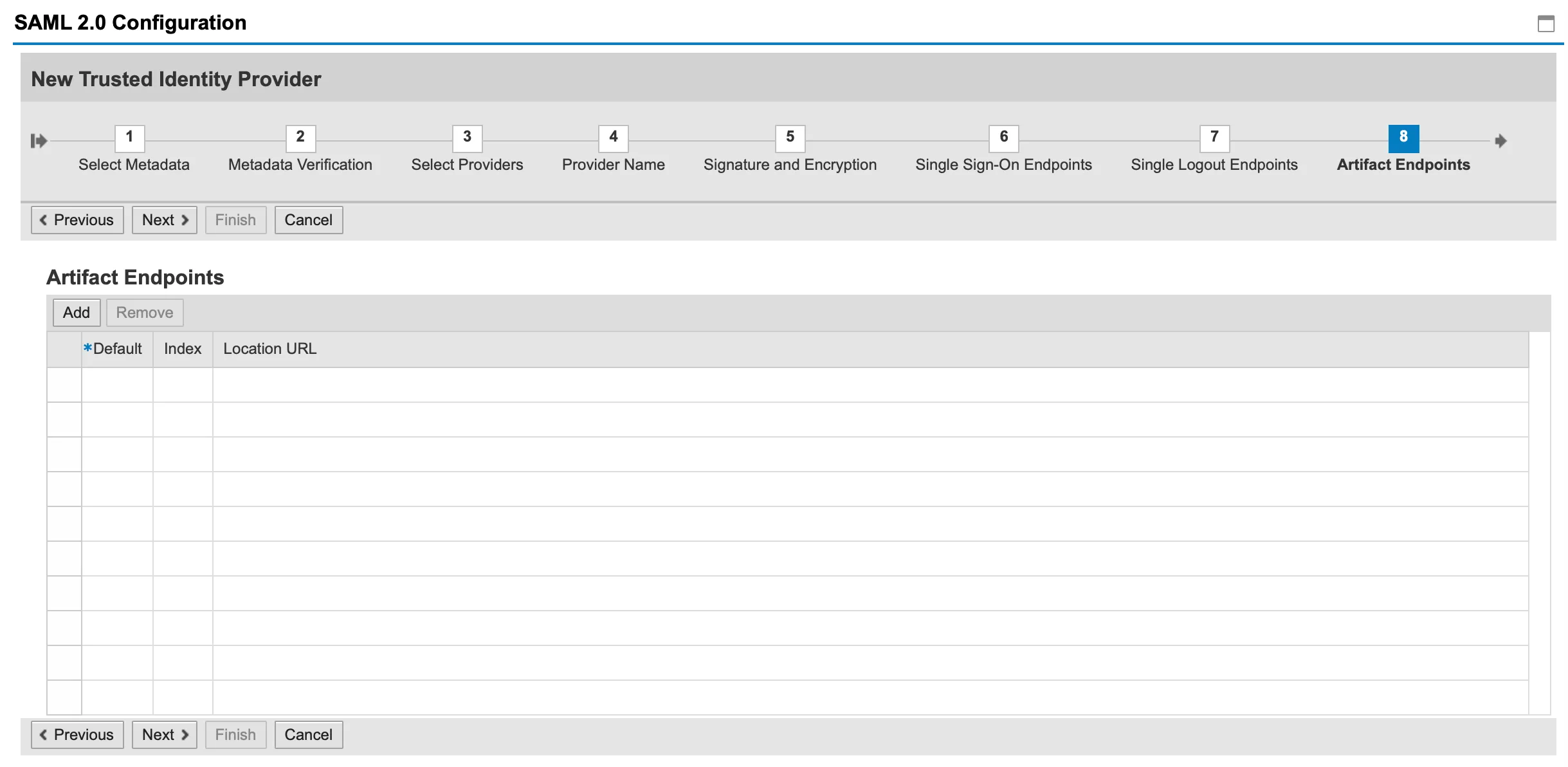
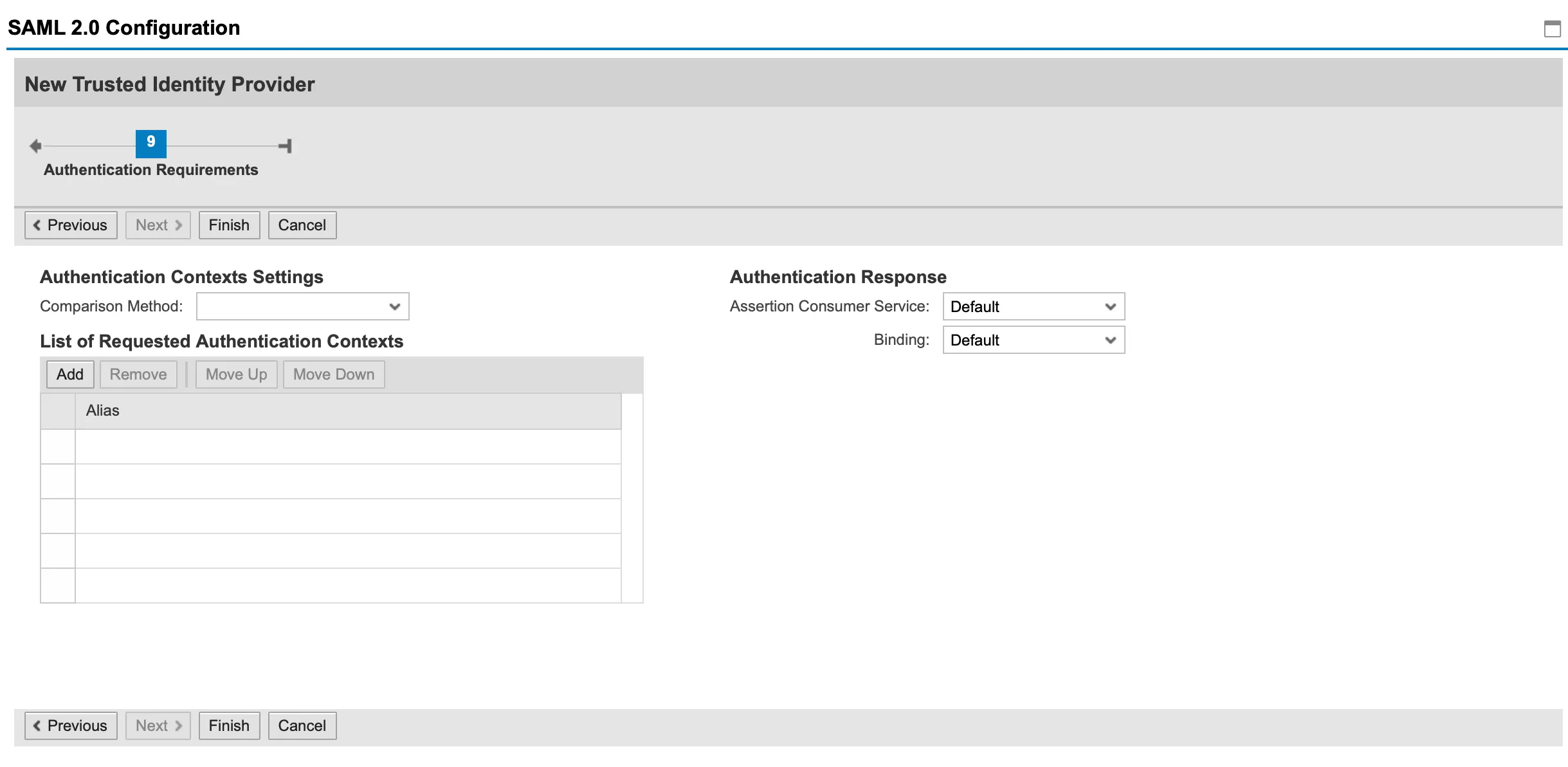
Click on Finish. The Keycloak SAML 2.0 IdP is added as a trusted IdP.

Note that the Keycloak IdP is added to the list of trusted IdPs, but is not activate and is still missing some important configuration. This will be done in the next steps.