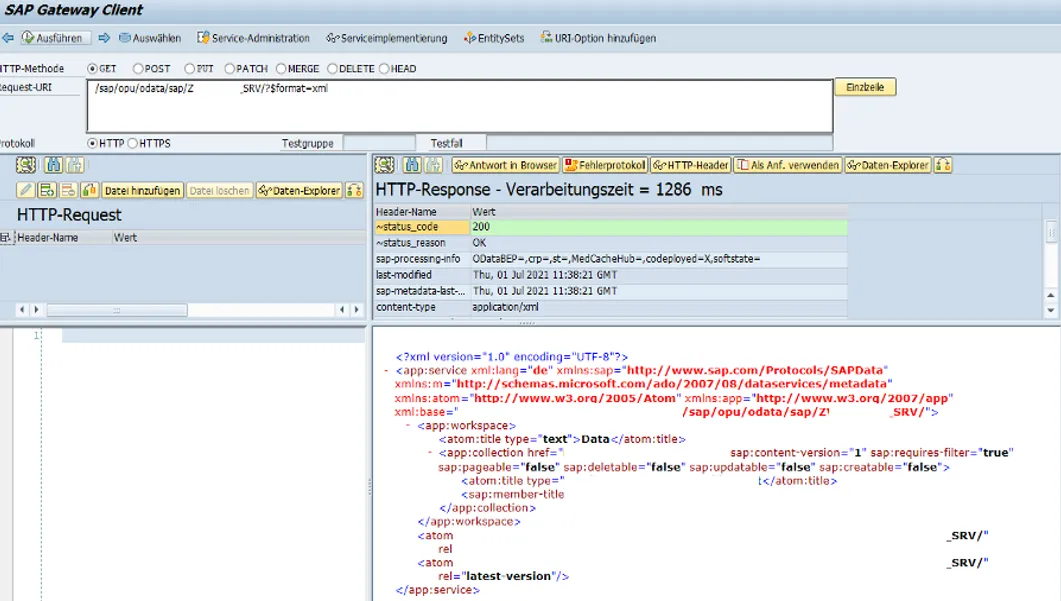
A developer creates a new OData service (code, definition, implementation) in the backend and adds everything to a transport package. After transporting an OData service from DEV to QA in the backend, the service is not usable in QA as the system alias for the OData service is missing. While the service definition and implementation were transported, the important piece that enables to call the service is not part of the transport package. The developer publishes and creates the service and system alias LOCAL in SEGW using an SAP wizard. In QA the system alias LOCAL is not attributed to the new OData service.
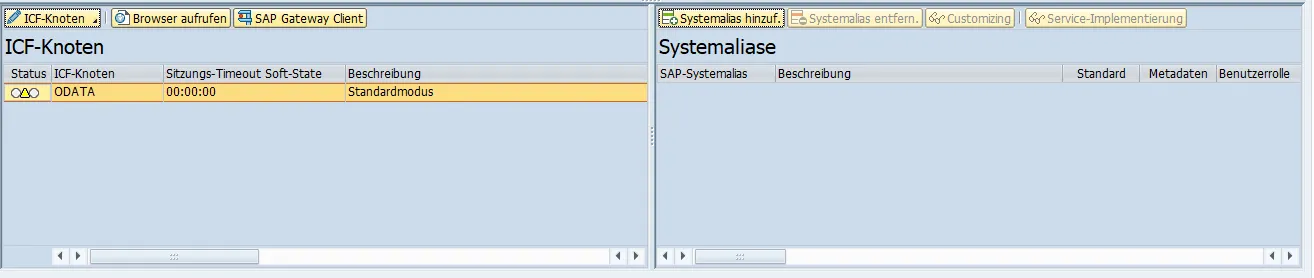
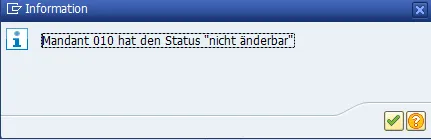
This (partly) makes sense as the system alias might differ in each environment. In almost all cases the system alias needed here is LOCAL, as it is the GW backend. You might want to add the system alias manually. Depending on the system configuration, this is not possible as the system is closed. Basis can open the system and add the alias, yet, it is better to transport this configuration.
To transport the LOCAL system alias for the OData service from DEV to QA, it is needed to
- Create a transport request
- Add table entry for system alias configuration
- Transport
Sorry for the German language in the screenshots, I forgot to change the logon language. I hope you can still figure out where to click in your SAPGui.
Create a transport request
Create a new workbench request.
Transaction: SE01
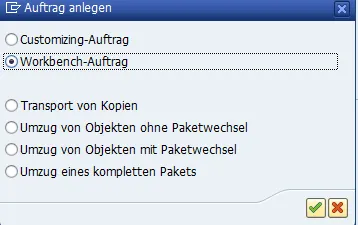
Provide the necessary transport information.
Description: GW alias
Target: QA
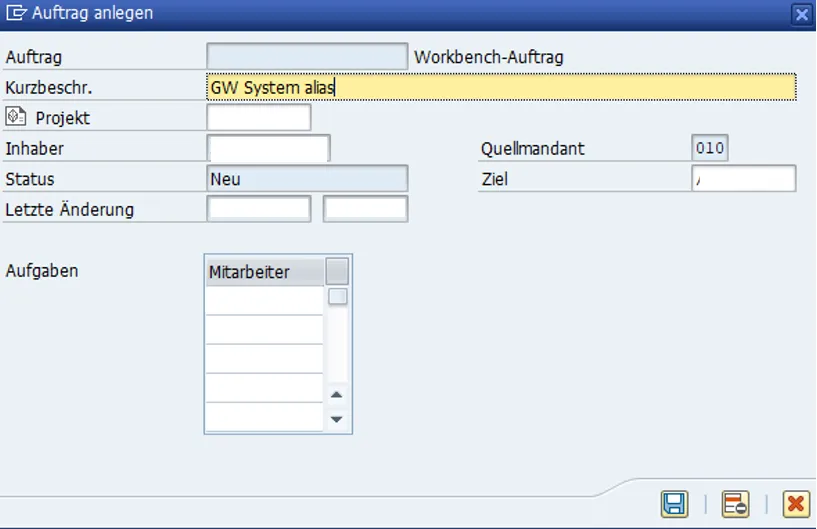
Add the table entry to the transport. Select the transport request (double click).
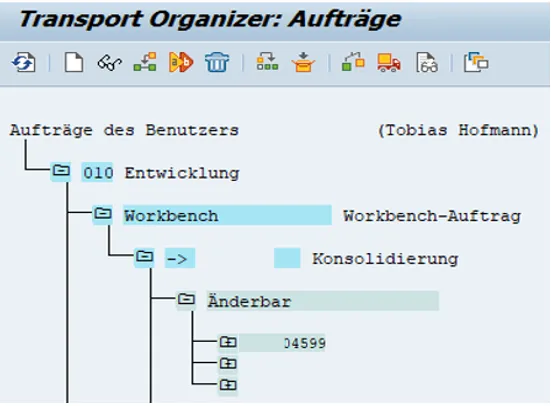
The details of the selected transport request are shown. As nothing was yet done, it is empty.
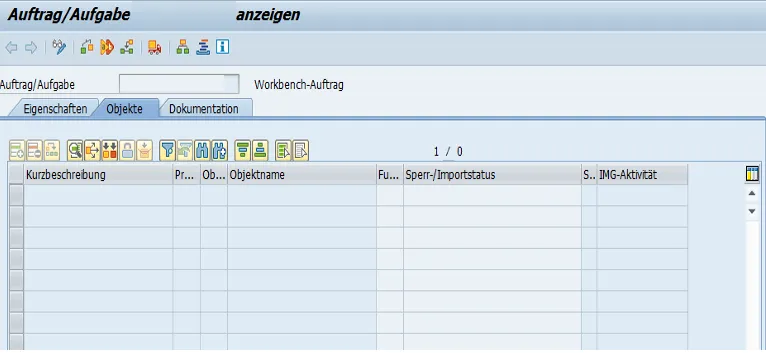
Add table entry for system alias configuration
In the detail view of the transport request, manually add the table entry for the system alias. Click on edit.
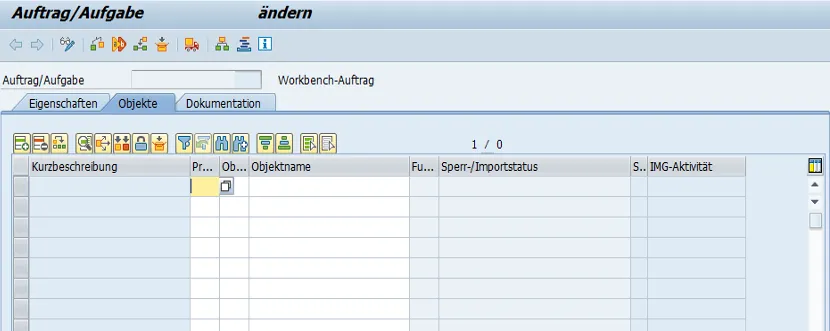
Add a new table entry. Click the add row button.
Add the following values for the columns / parameters:
Program ID: R3TR
Object type: TABU
Object name: /IWFND/C_MGDEAM
The table entry for the transport should look like this:

Click on the button in column Function. A new dialog opens. It is not very intuitive to know what to do here. The intent is to enter the table entry that should be added to the transport.
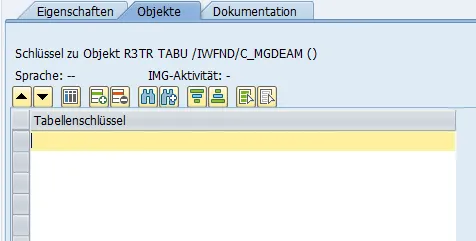
Double click on the first empty line. Add the entries for the table entry.
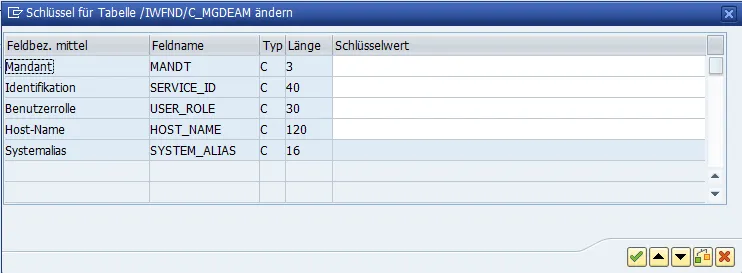
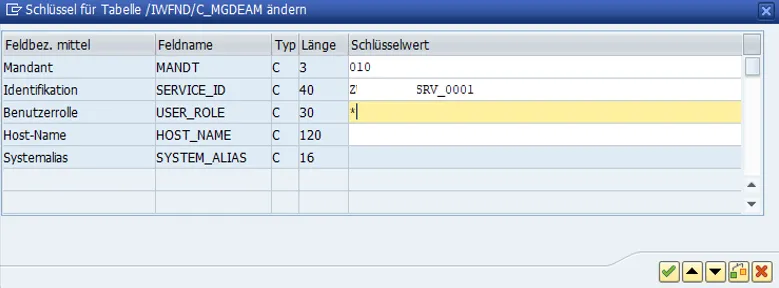
The values depend on your OData service.
Client: Your client, e.g. 100
Service ID: Technical service ID of the OData service
Note
The values can be looked ab in the table /IWFND/C_MGDEAM. Look at the table entries via transaction SE16. Open the details for the OData service entry. These are the same values that have to go in the above form.
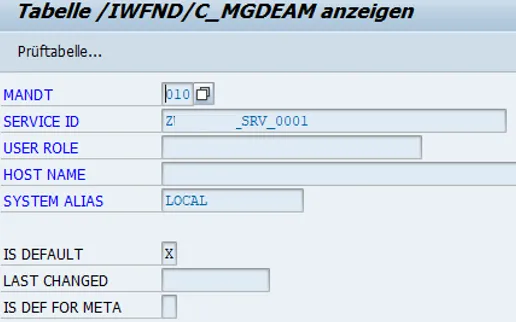
Click OK and the entry is added to the list of objects.
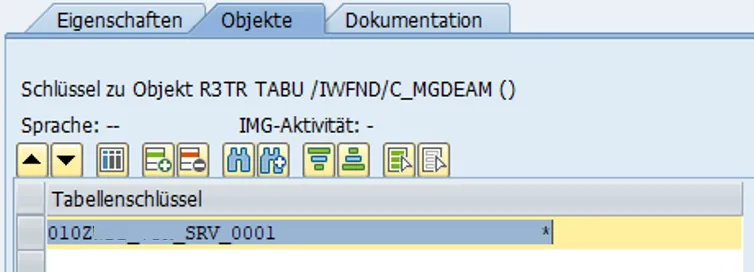
In the transport organizer (SE01, SE09, SE10) the transport lists now the table entry.
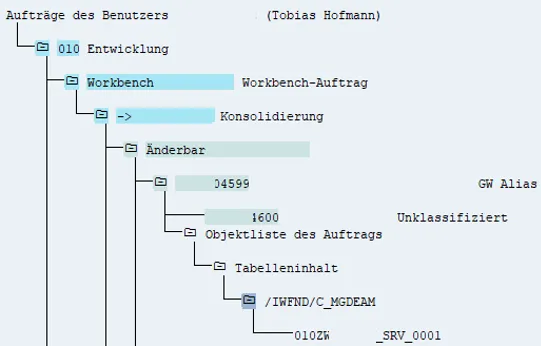
Transport
Transport into your QA system. Go to the services maintenance transaction and validate if the alias is transported.

You might still have to activate the ICF node for the service to work.
ICF Node not activated (icon yellow)
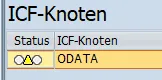
Activate ICF node for selected OData service
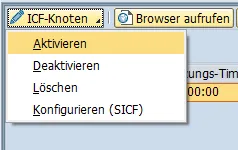
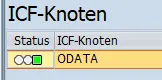
ICF node activated (icon green).
Test
After transporting the system alias and activating the ICF node, the OData service is ready to be used. A simple test can be done via the Gateway client. Call the service definition and some information must be returned.