

Short version: Delete Xcode command line tools and reinstall them.
Scenario
Problem:
For a NPM package the dependencies should be installed. NPM install command is run and suddenly fails with an error caused by node-gyp.
Command:
npm install
Output:
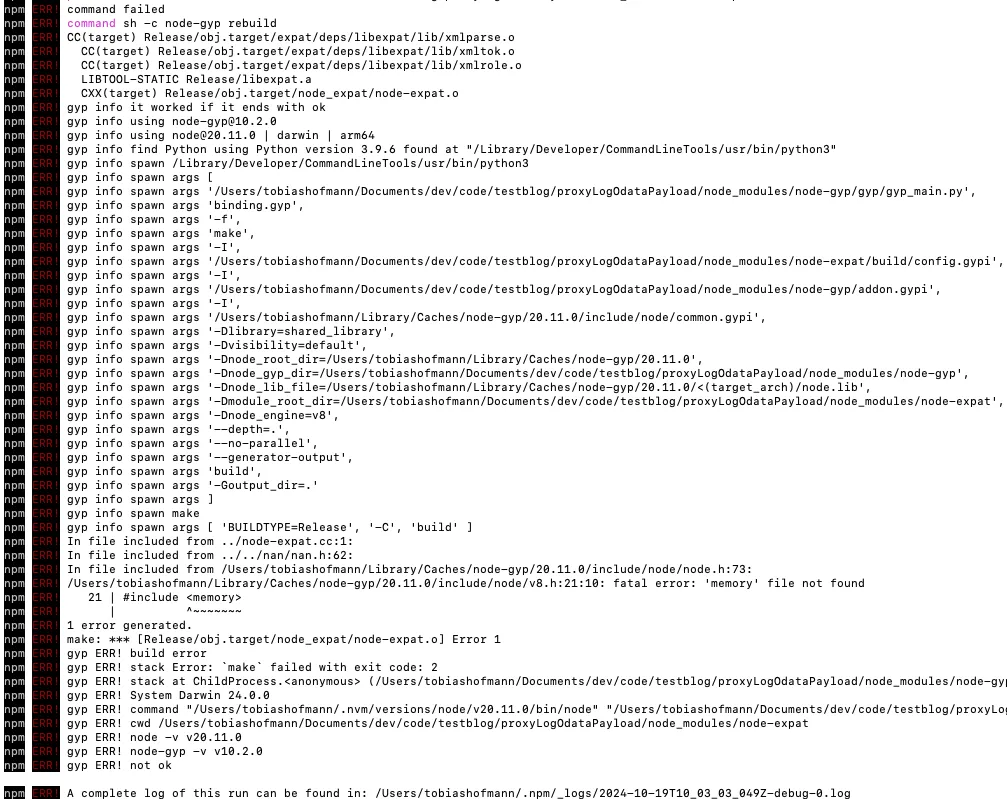
Error message:
Fatal error: ‘memory’ file not found
Result:
npm install fails
Context
The npm install command tries to use node-gyp and to build a needed dependency. Node-gyp 🔗 is complicated, as it is a cross-platform tool for compiling native modules for Node.js. Its readme 🔗 provides some guidance on how to ensure that it works. The problem start when it should work, but isn’t. Looking at Google, this is a common case.
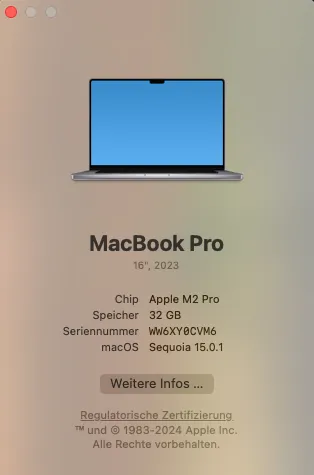
My computer is a Mac:
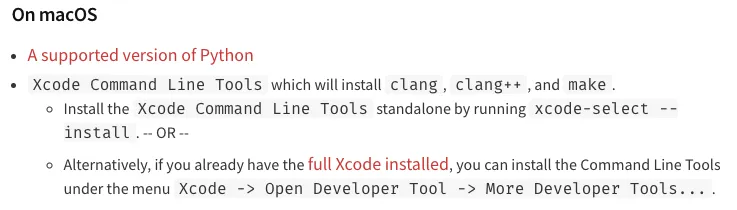
For Mac, node-gyp lists the Xcode command line tools as a requirement.
Checking if the tools are installed:
xcode-select --install
Output:
xcode-select: note: Command line tools are already installed. Use “Software Update” in System Settings or the softwareupdate command line interface to install updates
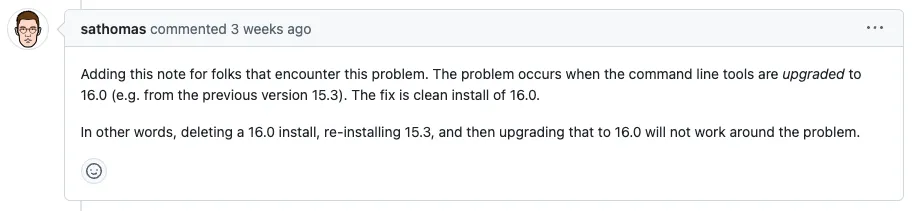
I came across the issue “Can not build on macOS 14.6.1 with clang 16 🔗” and answer 🔗:
Solution
Delete Xcode command line tools and reinstall them
Remove Xcode Command Line Tools
First, find out the directory where the tools are installed:
xcode-select -p
Result:
/Library/Developer/CommandLineTools

Next: delete the directory. You need to have admin rights!
sudo rm -rf /Library/Developer/CommandLineTools
Running xcode-select to show the installation folder points now to a different one:
xcode-select -p
Result:
/Applications/Xcode.app/Contents/Developer

Installation of Xcode Command Line Tools
Install the tools again:
xcode-select --install

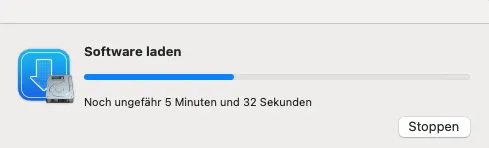
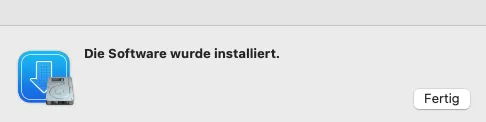
Result:
The Xcode Command Line Tools are installed again.
Result
Running npm install again
npm i
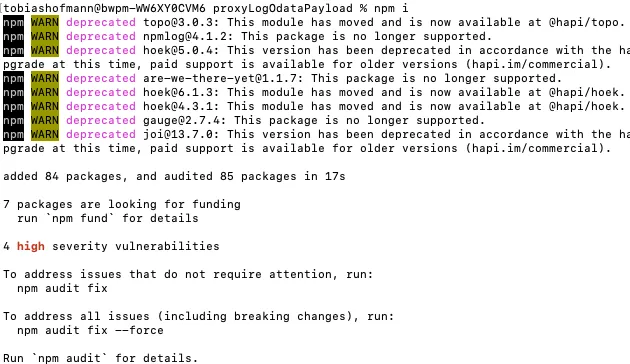
No compile error. Problem solved.