

It is easy to install SAP HXE on Proxmox. It’s just 3 steps.
- Preparation
- Install HXE
- Additional configuration
Preparation
Before you can run HXE, first you have to download the files from SAP and configure a Proxmox VM for HXE and import the OVA image. I wrote a blog on how you can import an OVA image in Proxmox 🔗.
Install HXE
After importing the OVA image, you have a virtual machine with HXE. The image is only missing the installation of HXE. Start the VM.
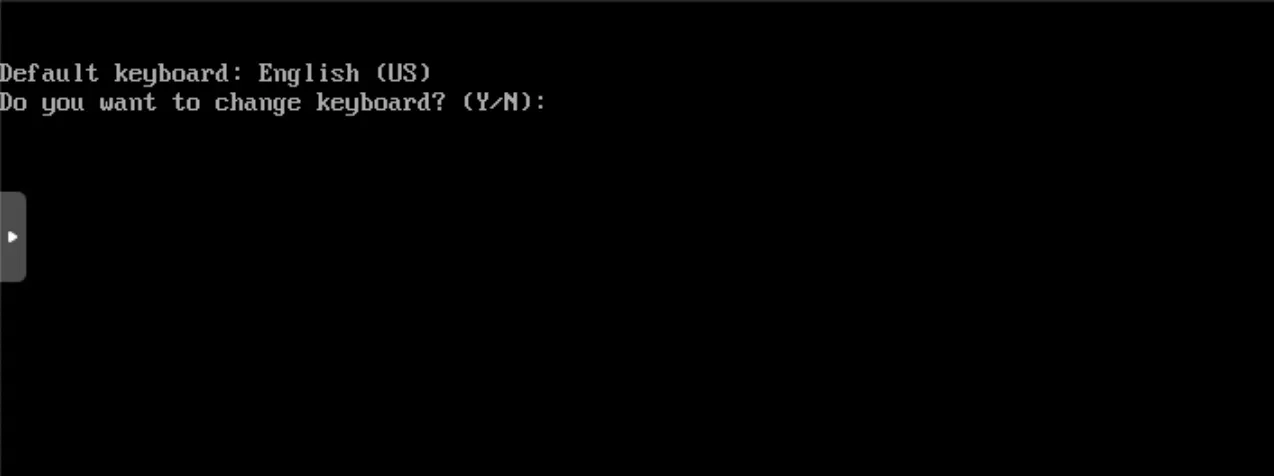
- Select keyboard layout to use.
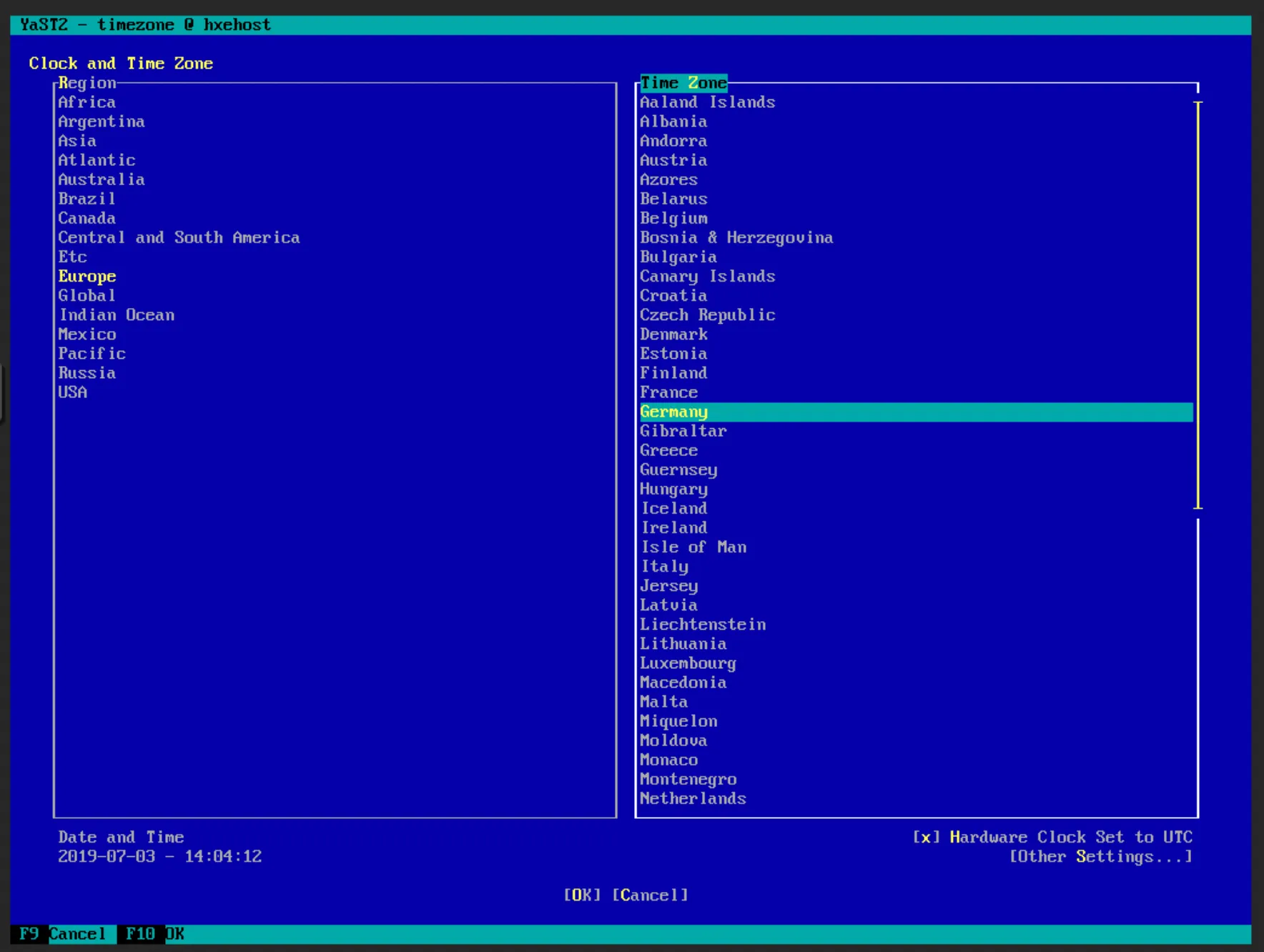
- Configure time zone.
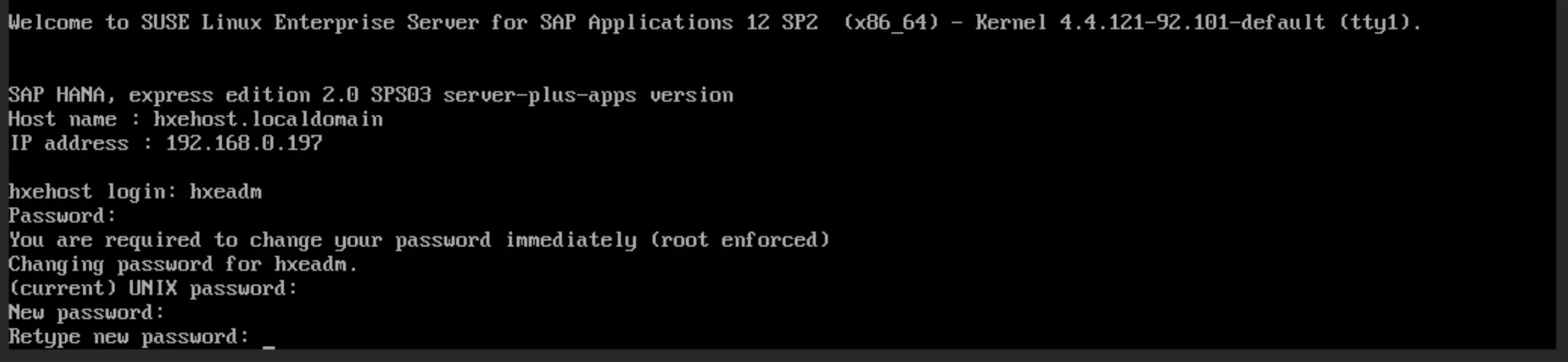
- Login
Login: hxeadm
Passsord: HXEHana1

- Change password
After logging in, you will be asked to change your password.
- HXE Installation
After changing the password, HXE installation will be started automatically.
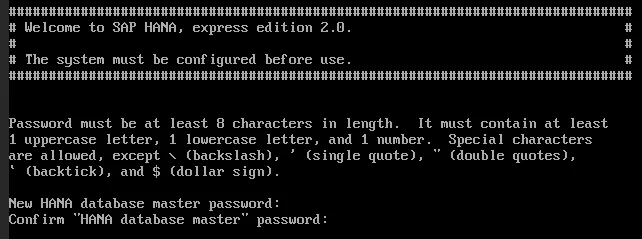
Provide HANA master password
Proxy configuration: y or n, depends on your network configuration.

Start XSA configuration.
Wait for XSA configuration to finish. This will block the console, but also allows you to check easily the current status of the installation.

Confirm values: Y
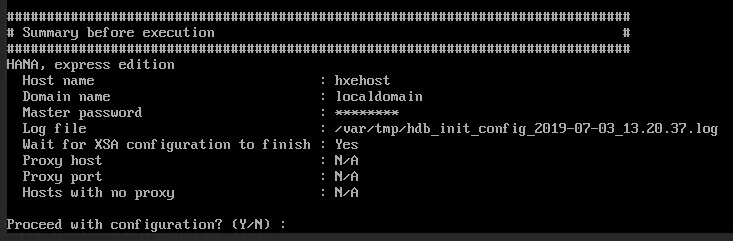
Installation starts. Grab coffee, a lot. More. Way more coffee.
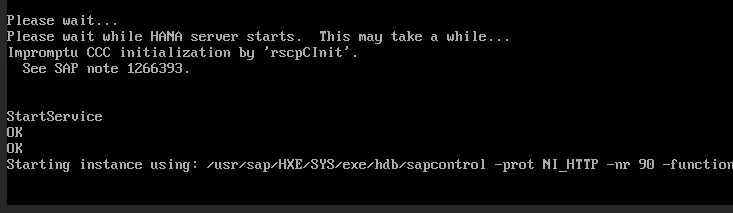
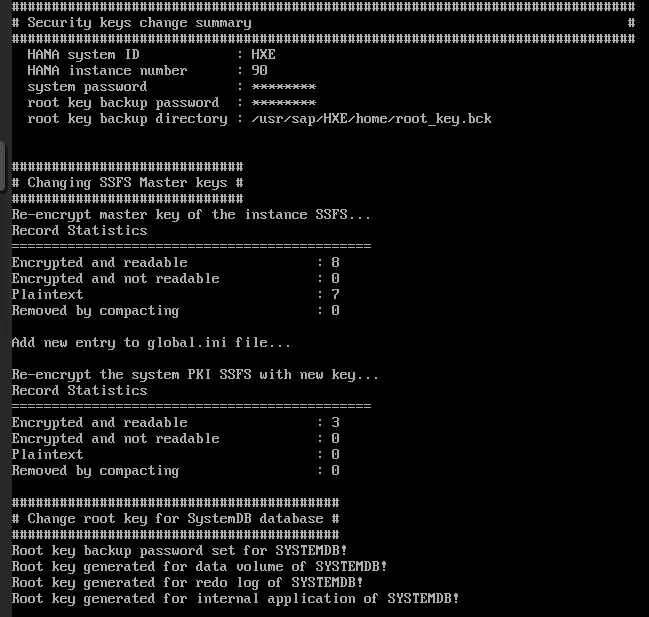
When the installation successfully runs through, a congratulation message is written to shell.

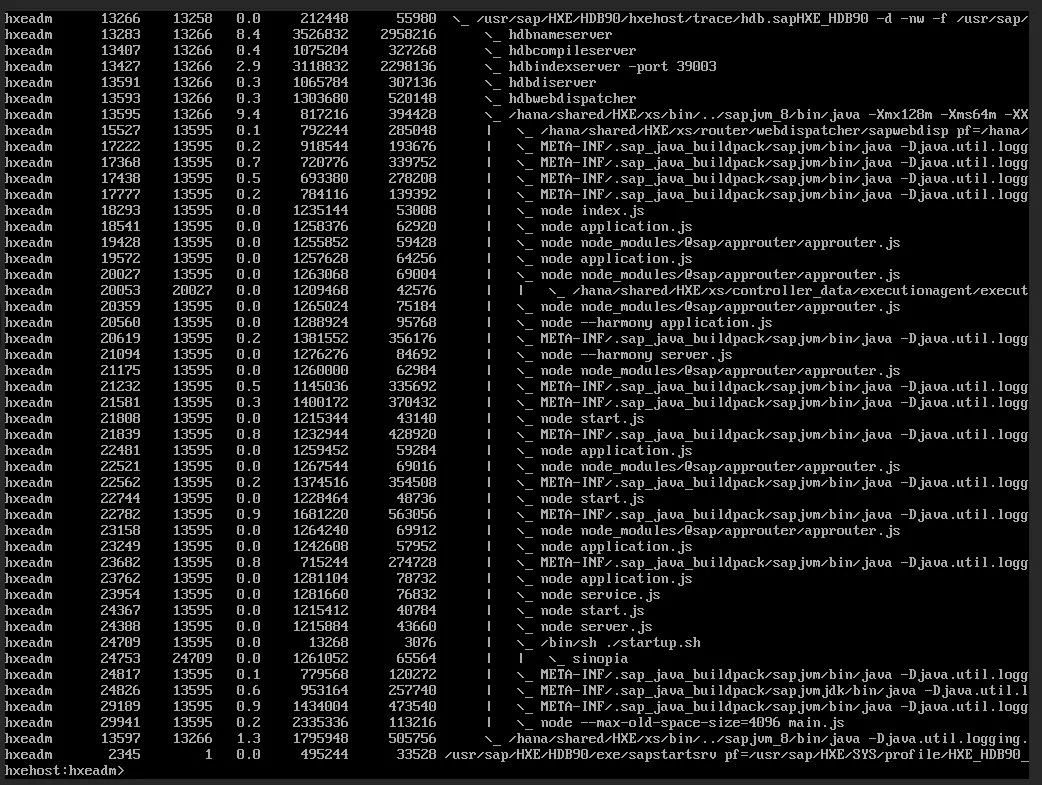
To see the started services:
./HDB info
Additional configuration
Stop HXE
./HDB stop
Start HXE
./HDB start
Access
Note the IP address and assign an alias to it in the /etc/hosts file of your laptop to be able to access HXE with a FQDN.
