The user creation scenario is an extension to the “simple” SAML 2.0 SSO scenario 🔗. Therefore, a pre-requisite is to have the SAML 2.0 IdP and SP configured to trust each other. A logon from IdP to SP with an existing user must work. In my case, the external Identity Provider (IdP) is Keycloak. You can read my blogs to know more about what Keycloak is 🔗, how to install and configure 🔗 it as an IdP for SAP NetWeaver 🔗.
To enhance the normal SAML 2.0 SSO scenario, it is necessary to configure the IdP to call the external ICF node (see previous blog) to trigger the user creation. The profile send in the SAML response must match what the ABAP code is expecting. Two configuration changes are needed on the IdP:
- Call the new external ICF service and
- Adjust the SAML response to include the expected user information (profile, roles)
Change Assertion Consumer Service
Change the POST binding to call the external ICF node for user creation.
Note
In the example, I using the NPL default client 001.
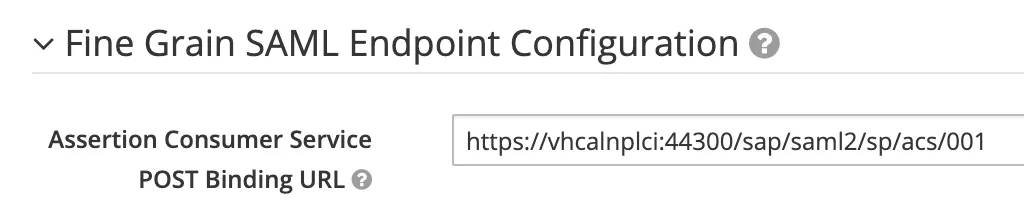
Replace the default value
https://vhcalnplci:44300/sap/saml2/sp/acs/001
with
https://vhcalnplci:44300/sap/saml2/sp/register/001?sap-client=001
Configure SAML assertions
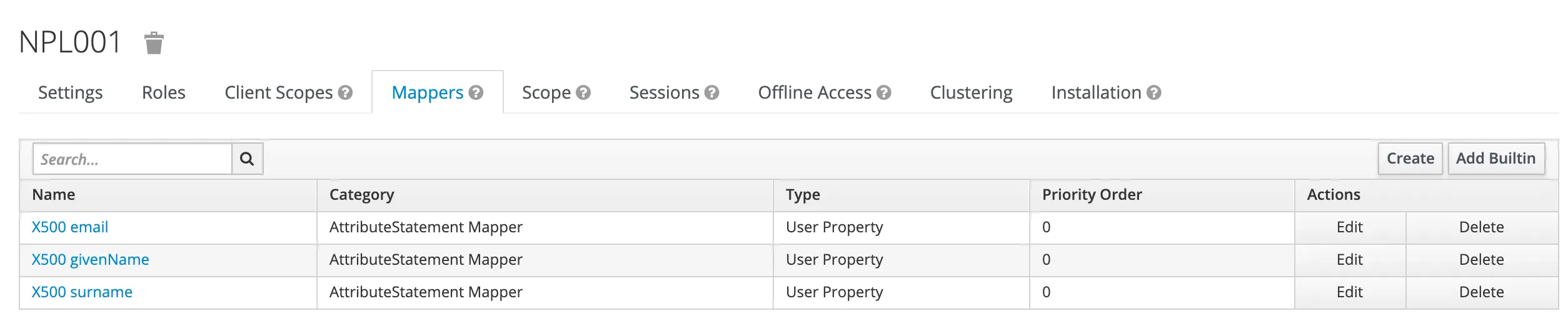
For the ABAP code called by the BADI to run without errors, the SAMLResponse must include some mandatory user information like first and last name and e-mail address. To add this information mappers are used. These take the information of the user in Keycloak and add it to the response send back from IdP to SP.
Note
Additional information can be added. The example code provided by SAP for the BADI is not validating additional user information. The only mandatory information the IdP needs to provide is the user name and email address. For roles: if a role is missing, the ABAP code will work just fine.
Add mappers
Mappers needed for the user profile are:
- First name
- Last name
<saml:Attribute FriendlyName=“email” Name=“urn:oid:1.2.840.113549.1.9.1”>saml:AttributeValuetest2@example.com
Firstname
<saml:Attribute FriendlyName=“firstname” Name=“urn:oid:2.5.4.42” NameFormat=“urn:oasis:names:tc:SAML:2.0:attrname-format:basic”><saml:AttributeValue xmlns:xs=“http://www.w3.org/2001/XMLSchema 🔗” xmlns:xsi=“http://www.w3.org/2001/XMLSchema-instance 🔗” xsi:type=“xs:string”>Test2</saml:AttributeValue></saml:Attribute>
Lastname
<saml:Attribute FriendlyName=“lastname” Name=“urn:oid:2.5.4.4” NameFormat=“urn:oasis:names:tc:SAML:2.0:attrname-format:basic”><saml:AttributeValue xmlns:xs=“http://www.w3.org/2001/XMLSchema 🔗” xmlns:xsi=“http://www.w3.org/2001/XMLSchema-instance 🔗” xsi:type=“xs:string”>SAML
Adding the mappers for the mandatory user information will result in a SAML response that will be accepted by the ABAP code in the user creation process. The resulting SAMLResponse should look like in the example.
<samlp:Response xmlns:samlp=“urn:oasis:names:tc:SAML:2.0:protocol” xmlns:saml=“urn:oasis:names:tc:SAML:2.0:assertion” Destination=“https://vhcalnplci:44300/sap/saml2/sp/register/001?sap-client=001 🔗” ID=“ID_09884f19-8b3d-4872-bf6f-d927c20d78b8” InResponseTo=“S08002777-0476-1eea-998e-05afa8242412” IssueInstant=“2020-03-12T14:46:02.799Z” Version=“2.0”>saml:Issuerhttp://localhost:8080/auth/realms/NPLUser 🔗</saml:Issuer>samlp:Status<samlp:StatusCode Value=“urn:oasis:names:tc:SAML:2.0:status:Success”/></samlp:Status><saml:Assertion xmlns=“urn:oasis:names:tc:SAML:2.0:assertion” ID=“ID_51baf25c-0605-4975-a0e3-6ab353a793d5” IssueInstant=“2020-03-12T14:46:02.799Z” Version=“2.0”>saml:Issuerhttp://localhost:8080/auth/realms/NPLUser 🔗</saml:Issuer>saml:Subject<saml:NameID Format=“urn:oasis:names:tc:SAML:2.0:nameid-format:persistent”>G-23cb9564-6a12-4a76-bfff-21af3433ea8c</saml:NameID><saml:SubjectConfirmation Method=“urn:oasis:names:tc:SAML:2.0:cm:bearer”><saml:SubjectConfirmationData InResponseTo=“S08002777-0476-1eea-998e-05afa8242412” NotOnOrAfter=“2020-03-12T14:51:00.799Z” Recipient=“https://vhcalnplci:44300/sap/saml2/sp/register/001?sap-client=001”/> 🔗</saml:SubjectConfirmation></saml:Subject><saml:Conditions NotBefore=“2020-03-12T14:46:00.799Z” NotOnOrAfter=“2020-03-12T14:47:00.799Z”>saml:AudienceRestrictionsaml:AudienceNPL001</saml:Audience></saml:AudienceRestriction></saml:Conditions><saml:AuthnStatement AuthnInstant=“2020-03-12T14:46:02.799Z” SessionIndex=“cc0899ad-3768-4198-a262-3b4ee20d9197::92e80057-33ac-4229-8eda-116545f68184” SessionNotOnOrAfter=“2020-03-13T00:46:02.799Z”>saml:AuthnContextsaml:AuthnContextClassRefurn:oasis:names:tc:SAML:2.0:ac:classes:unspecified</saml:AuthnContextClassRef></saml:AuthnContext></saml:AuthnStatement>saml:AttributeStatement<saml:Attribute FriendlyName=“email” Name=“urn:oid:1.2.840.113549.1.9.1” NameFormat=“urn:oasis:names:tc:SAML:2.0:attrname-format:basic”><saml:AttributeValue xmlns:xs=“http://www.w3.org/2001/XMLSchema 🔗” xmlns:xsi=“http://www.w3.org/2001/XMLSchema-instance 🔗” xsi:type=“xs:string”>test2@example.com</saml:AttributeValue></saml:Attribute><saml:Attribute FriendlyName=“firstname” Name=“urn:oid:2.5.4.42” NameFormat=“urn:oasis:names:tc:SAML:2.0:attrname-format:basic”><saml:AttributeValue xmlns:xs=“http://www.w3.org/2001/XMLSchema 🔗” xmlns:xsi=“http://www.w3.org/2001/XMLSchema-instance 🔗” xsi:type=“xs:string”>Test2</saml:AttributeValue></saml:Attribute><saml:Attribute FriendlyName=“lastname” Name=“urn:oid:2.5.4.4” NameFormat=“urn:oasis:names:tc:SAML:2.0:attrname-format:basic”><saml:AttributeValue xmlns:xs=“http://www.w3.org/2001/XMLSchema 🔗” xmlns:xsi=“http://www.w3.org/2001/XMLSchema-instance 🔗” xsi:type=“xs:string”>SAML</saml:AttributeValue></saml:Attribute><saml:Attribute Name=“Role” NameFormat=“urn:oasis:names:tc:SAML:2.0:attrname-format:basic”><saml:AttributeValue xmlns:xs=“http://www.w3.org/2001/XMLSchema 🔗” xmlns:xsi=“http://www.w3.org/2001/XMLSchema-instance 🔗” xsi:type=“xs:string”>view-profile</saml:AttributeValue></saml:Attribute><saml:Attribute Name=“Role” NameFormat=“urn:oasis:names:tc:SAML:2.0:attrname-format:basic”><saml:AttributeValue xmlns:xs=“http://www.w3.org/2001/XMLSchema 🔗” xmlns:xsi=“http://www.w3.org/2001/XMLSchema-instance 🔗” xsi:type=“xs:string”>offline_access</saml:AttributeValue></saml:Attribute><saml:Attribute Name=“Role” NameFormat=“urn:oasis:names:tc:SAML:2.0:attrname-format:basic”><saml:AttributeValue xmlns:xs=“http://www.w3.org/2001/XMLSchema 🔗” xmlns:xsi=“http://www.w3.org/2001/XMLSchema-instance 🔗” xsi:type=“xs:string”>manage-account</saml:AttributeValue></saml:Attribute><saml:Attribute Name=“Role” NameFormat=“urn:oasis:names:tc:SAML:2.0:attrname-format:basic”><saml:AttributeValue xmlns:xs=“http://www.w3.org/2001/XMLSchema 🔗” xmlns:xsi=“http://www.w3.org/2001/XMLSchema-instance 🔗” xsi:type=“xs:string”>manage-account-links</saml:AttributeValue></saml:Attribute><saml:Attribute Name=“Role” NameFormat=“urn:oasis:names:tc:SAML:2.0:attrname-format:basic”><saml:AttributeValue xmlns:xs=“http://www.w3.org/2001/XMLSchema 🔗” xmlns:xsi=“http://www.w3.org/2001/XMLSchema-instance 🔗” xsi:type=“xs:string”>uma_authorization</saml:AttributeValue></saml:Attribute></saml:AttributeStatement></saml:Assertion></samlp:Response>
Test
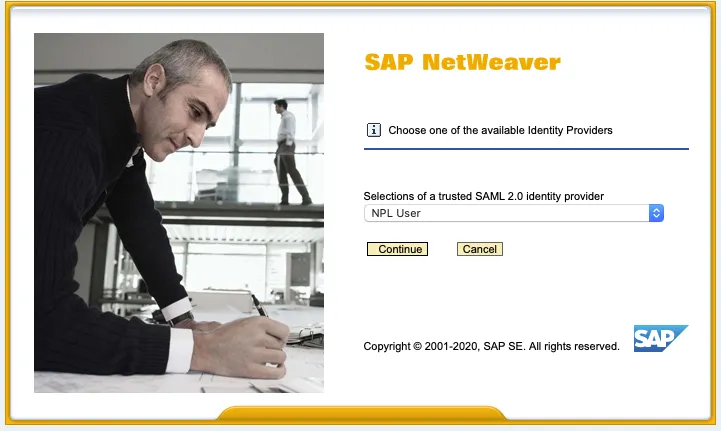
If you call SAP WebGui 🔗, you should be redirect to the logon page of your IdP and after providing the user credentials, be redirected to the external ICF node. Make user to select the SAML 2.0 IdP configured for user creation.